WPF – Exploring PopUp control – small demo

WPF - PopUp control
Hi All,
Greetings for the day 🙂 LIFE IS BEAUTIFUL 🙂
Background : I started working on new project – one of my favorite – Microsoft 365 Teams governance. Knowledge Junction team tries to implement small product where certain governance practices can be implemented. So to implement this kind of project we used WPF for UI. And off course I am new for WPF.
For implementing one of the requirement we need to show pop up on button click and here my research started
Details :
- In WPF there is pop up control (<Popup>) used to show the pop up
<Popup></Popup>- Following are few important properties mostly used
- Name : Name of Popup control. Unique identifier of the control. Best practice is to use proper name if we use pop up control in code block
- Width / Height : Width and Height of popup control
- VerticalAlignment : Set the vertical alignment of popup control
- HorizontalAlignment : Set the horizontal alignment of popup control
- IsOpen : Makes the popup visible. We can close PopUp control by setting this property to False
- Placement : Placement where popup control appears on the screen. Default placement for popup will be left top corner
<Popup Name="tenantdetails" PopupAnimation="Fade" Width="400" Height="400" AllowsTransparency="True" StaysOpen="False" Placement="Center"  VerticalAlignment="Center" HorizontalAlignment="Center">
</Popup>- By default we can have only one control to popup control
- To have multiple controls in popup control we either need to use <Grid> or <StackPanel> control
 <Popup Name="tenantdetails" PopupAnimation="Fade" Width="400" Height="400" AllowsTransparency="True" StaysOpen="False" Placement="Center"  VerticalAlignment="Left" HorizontalAlignment="Top">
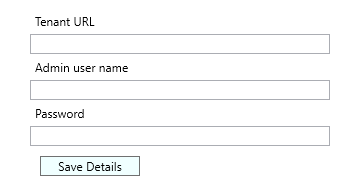
            <StackPanel>
                <Label Content="Tenant URL" Name="lblTenantURL"></Label>
                <TextBox x:Name="txtTenantURL"></TextBox>
                <Label Content="Admin user name" Name="lblUserName"></Label>
                <TextBox x:Name="txtAdminUserName"></TextBox>
                <Label Content="Password"></Label>
                <PasswordBox x:Name="pwdAdminUser"></PasswordBox>
                <Button Name="btnSave" Content="Save Details" Background="Blue" Click="btnSave_Click"
                  Height="20" Width="100" Margin="10,10,10,10"></Button>
            </StackPanel>
</Popup>- Output of above popup control is
- On “Save” button click we are closing the PopUp as
        private void btnSave_Click(object sender, RoutedEventArgs e)
        {
            tenantdetails.IsOpen = false;
        }//btnSave_Click
Thanks for reading 🙂
STAY SAFE 🙂 STAY HEALTHY 🙂


You must be logged in to post a comment.