Microsoft Teams : NEW FEATURE – Compact Chat List – Teams administration

fig : Microsoft 365 - Microsoft Teams - navigating to Teams Settings >> Appearance and accessibility >> Chat density

Hi All,

Greetings for the day!!! Today new updates related to Microsoft Teams – Compact chat list feature

New Feature / Update – Microsoft Teams – Compact Chat List

Details

  • Compact chat list is a feature that allows users to condense the view of their chat list and hide message previews
  • This new design will enable users to keep messages more private, view more chats in their chat list and navigate the chat list more easily
  • This feature addition will be the default chat list experience for compact mode users
  • Compact chat list will be rolling out across Microsoft Teams Desktop and Web and will provide a condensed view of the chat list
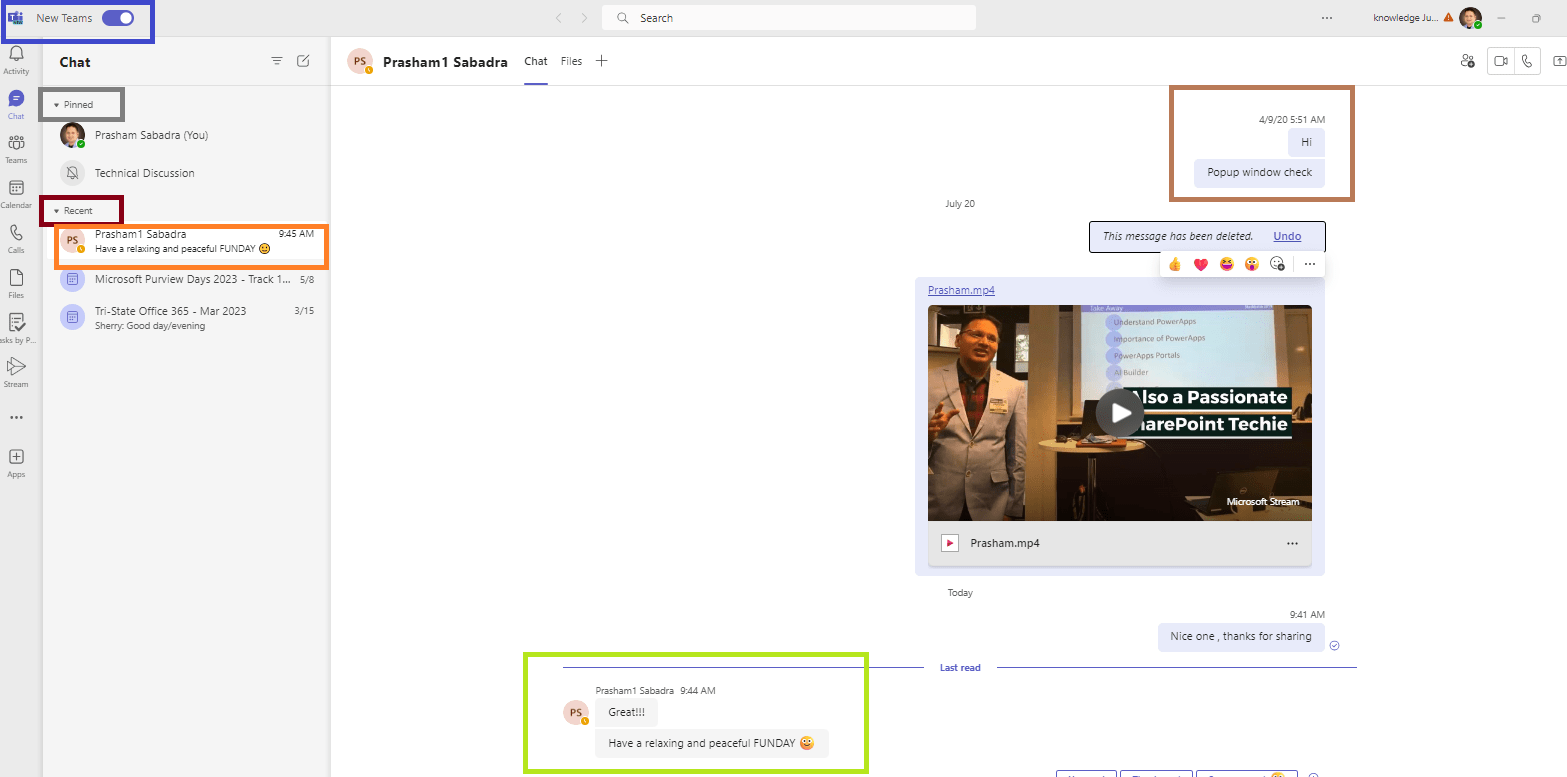
Microsoft 365 - Microsoft Teams - Comfy view of Chats - Default view of Chat
fig : Microsoft 365 – Microsoft Teams – Comfy view of Chats – Default view of Chat
  • After we change the setting to compact view , chats looks like
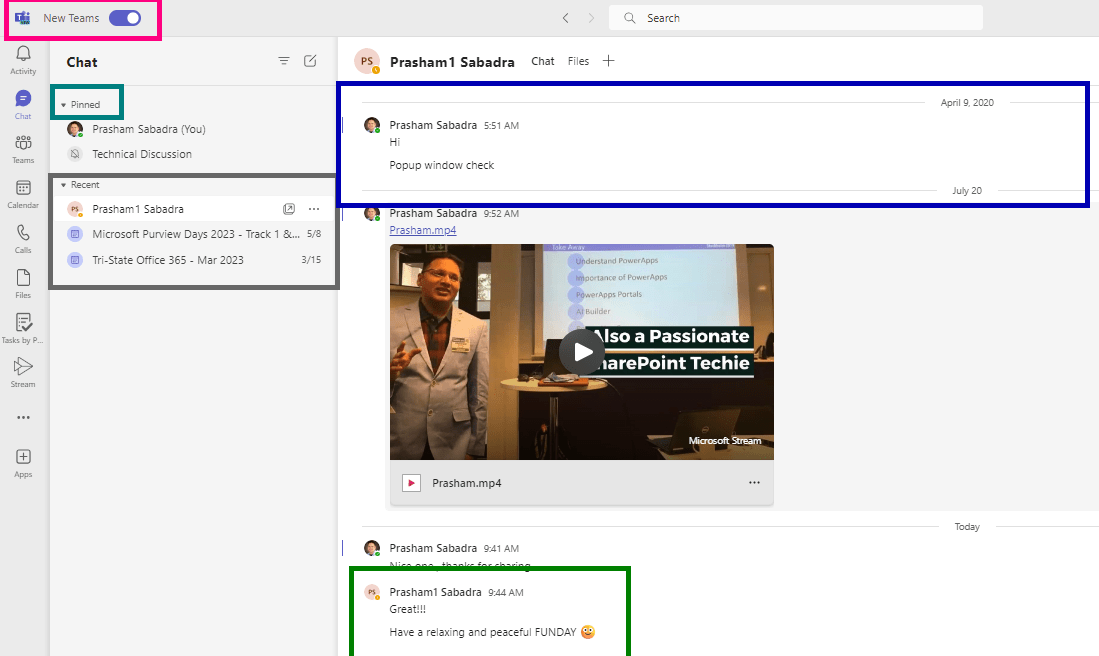
fig : Microsoft 365 - Microsoft Teams - Compact view of Chat
fig : Microsoft 365 – Microsoft Teams – Compact view of Chat
  • Notice the difference, all chats in one columns
  • In “Recent” section previews are disabled

How to change the Chat settings / Changing chat view – Chat density

  • Navigate to Teams settings – click on three dots (…) from right top corner – before profile icon as shown in below figure
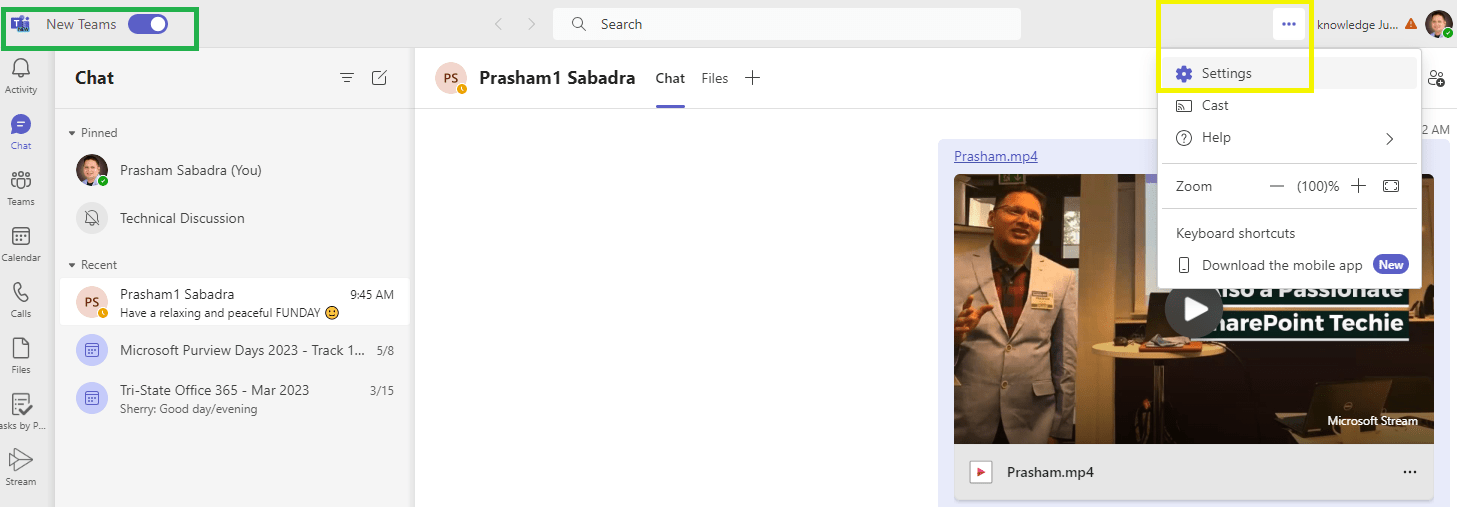
fig : Microsoft 365 - Microsoft Teams - navigating to Teams Settings
fig : Microsoft 365 – Microsoft Teams – navigating to Teams Settings
  • As we click on “Settings” we will be redirected to “Settings” pane as in below figure
  • From “Settings” pane, we will navigate to “Appearance and accessibility” section as in below figure
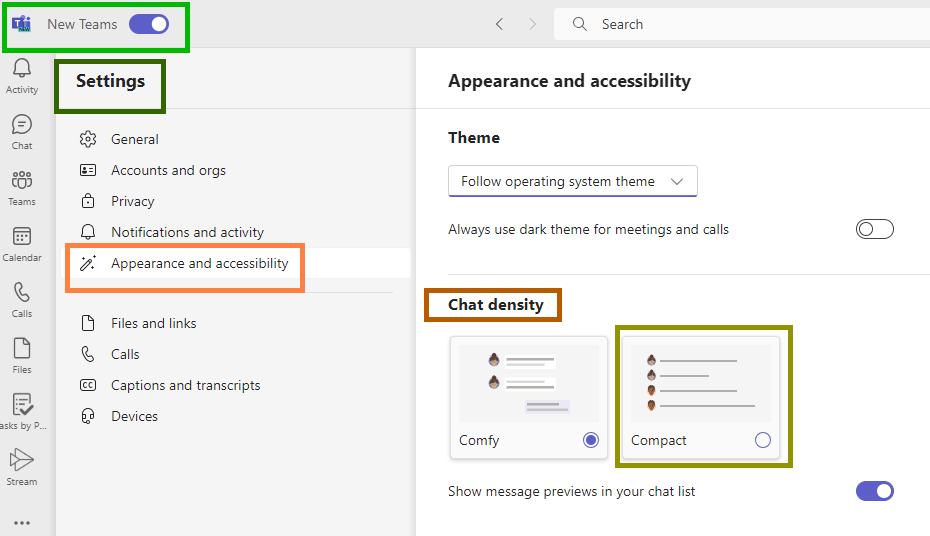
fig : Microsoft 365 - Microsoft Teams - navigating to Teams Settings >> Appearance and accessibility
fig : Microsoft 365 – Microsoft Teams – navigating to Teams Settings >> Appearance and accessibility >> Chat density – COMFY view – “Show message previews in your chat list” is on by default
  • On “Appearance and accessibility” section we will have “Chat density” section as in above figure
  • We have two options for “Chat density” section
    • Comfy – default option – in this case “Show message previews in your chat list” setting is default selected as in above figure
    • Compact – New feature added. Please have a look at above figure for compact view – how it looks like. For this option – “Show message previews in your chat list” setting is disabled by default
fig : Microsoft 365 - Microsoft Teams - navigating to Teams Settings >> Appearance and accessibility >> Chat density - COMPACT view - "Show message previews in your chat list" is off by default
fig : Microsoft 365 – Microsoft Teams – navigating to Teams Settings >> Appearance and accessibility >> Chat density – COMPACT view – “Show message previews in your chat list” is off by default

Microsoft 365 Roadmap ID126428

fig : Microsoft 365 - Roadmap ID 126428 - Microsoft Teams: Compact chat list
fig : Microsoft 365 – Roadmap ID 126428Microsoft Teams: Compact chat list

Thanks for reading!!! HAVE a FANTASTIC LEARNING 🙂 LIFE IS BEAUTIFUL 🙂

Prasham Sabadra

LIFE IS VERY BEAUTIFUL. ENJOY THE WHOLE JOURNEY :) Founder of Microsoft 365 Junction, Speaker, Author, Learner, Developer, Passionate Techie. Certified Professional Workshop Facilitator / Public Speaker. Believe in knowledge sharing. Around 20+ years of total IT experience and 17+ years of experience in SharePoint and Microsoft 365 services Please feel free me to contact for any SharePoint / Microsoft 365 queries. I am also very much interested in behavioral (life changing) sessions like motivational speeches, Success, Goal Setting, About Life, How to live Life etc. My book - Microsoft 365 Power Shell hand book for Administrators and Beginners and 100 Power Shell Interview Questions - https://www.amazon.in/Microsoft-Administrators-Beginners-Interview-Questions/dp/9394901639/ref=tmm_pap_swatch_0?_encoding=UTF8&qid=1679029081&sr=8-11

You may also like...

Leave a Reply

This site uses Akismet to reduce spam. Learn how your comment data is processed.

Discover more from Microsoft 365

Subscribe now to keep reading and get access to the full archive.

Continue reading