M365 / Microsoft Teams – Introduction to Microsoft Teams – for beginners / Administrators (help to prepare interviews and respective certifications) – Part 1

Microsoft Teams
Hi All,
Greetings for the day 🙂 LIFE IS BEAUTIFUL 🙂
What is Microsoft Team
- Microsoft Teams is hub for teamwork in Microsoft 365
- Teams is a chat-based workspace
- With Microsoft Teams we can do chatting, meetings, calling and lots of other features which we will explore in upcoming articles
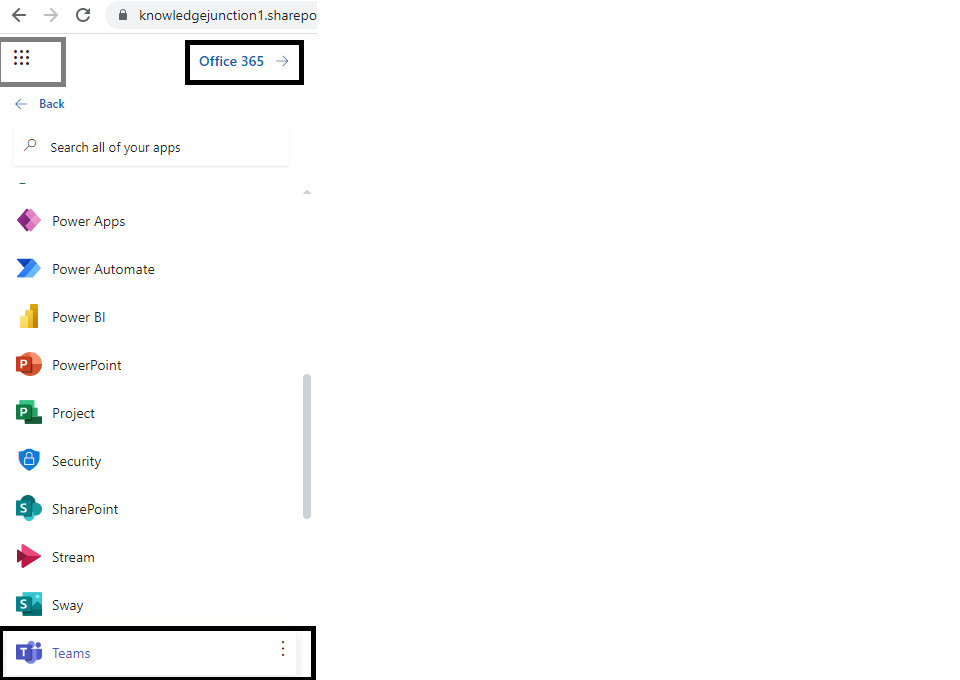
- We can launch Teams from Office 365 apps as
- Microsoft Teams has its own URL – https://teams.microsoft.com/
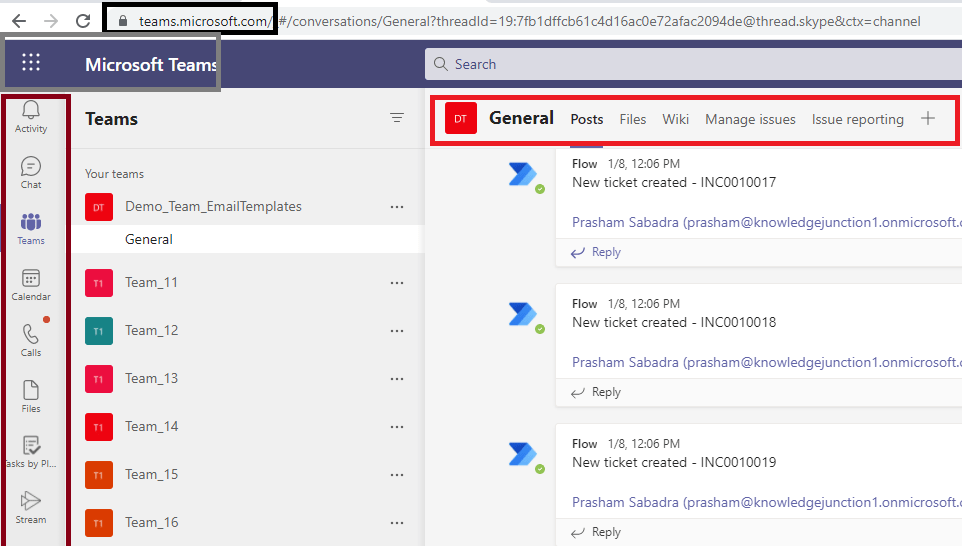
- We could log in to Teams with our M365 account
What are Teams
- A Team is nothing but SharePoint site behind the scene
- A team contains group of uses, content (documents, wikis, images, public / private chat, calendar, meeting details and so on)
- Teams are a collection of people, content, and tools surrounding different projects and outcomes within an organization
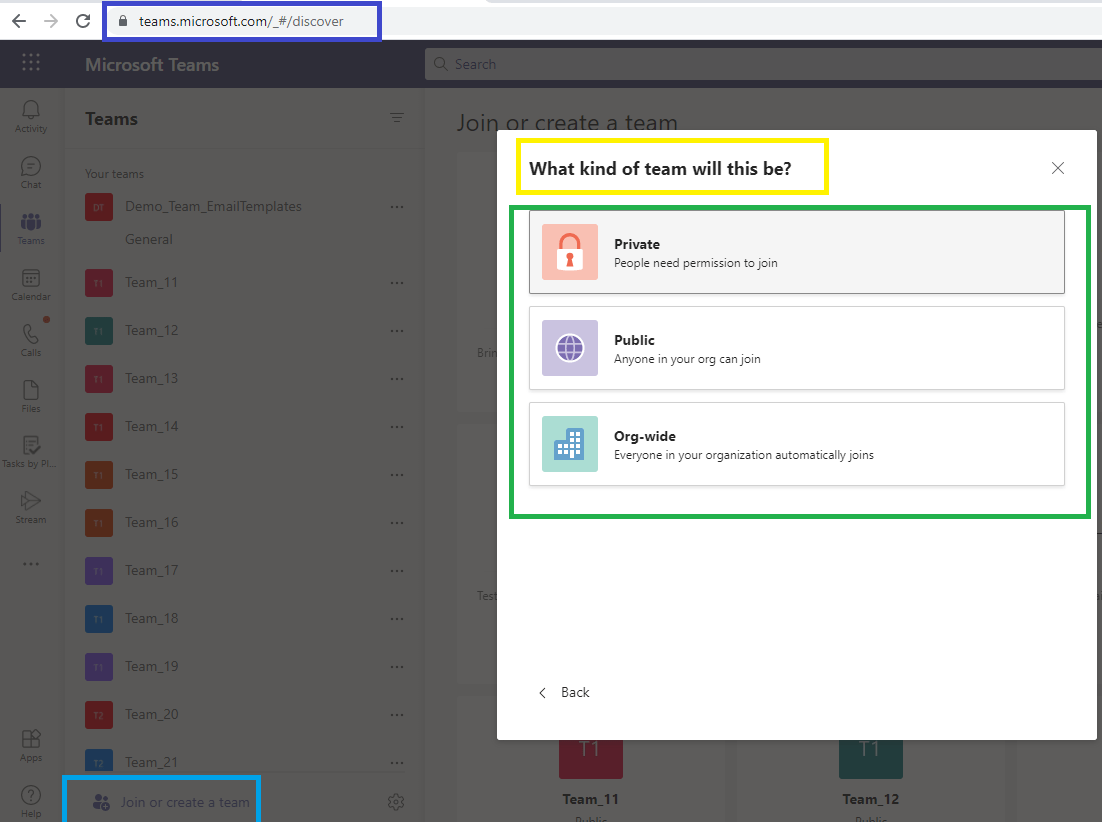
- There are private team, public team and Org-wide Team
- Private Team : In private team only invited users have access
- Public Team : Any user from the organization can join the team
- Org-wide Team : Every use from our organization joins automatically
- Teams is built on Microsoft 365 groups, Microsoft Graph, and security, compliance and manageability of Microsoft 365
What are channels
- Channels are dedicated sections within a team that keep conversations organized by specific topics, projects, or disciplines
- When we create a new Team default “General” channel is created as in below Fig
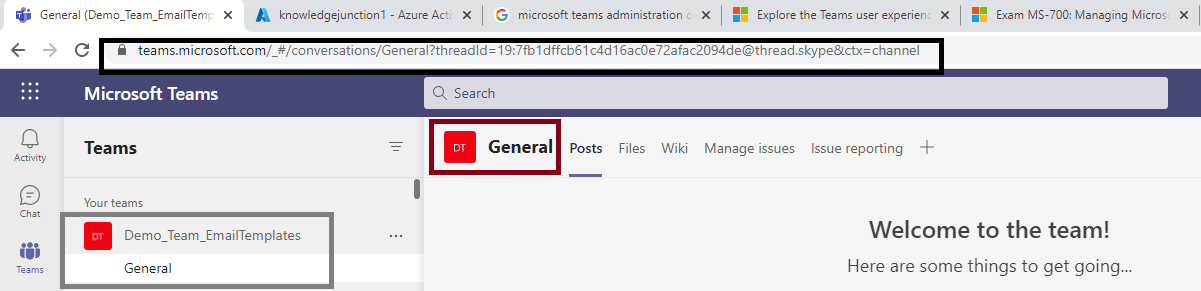
- In Posts section of our channel, team members can do conversations
- File can be uploaded / shared under Files tab. These files are stored in SharePoint
- Each channel has separate folder in document library of SharePoint site
- We can extend channels with apps, bots, tabs, connectors and so on
What is Microsoft 365 Group
- Microsoft 365 Groups is the membership service of Microsoft 365
- With Microsoft 365 Groups, you can give a group of people access to a collection of shared resources as
- A shared Outlook inbox
- A shared Calendar
- A SharePoint document library
- A Planner
- A Onenote notebook
- Power BI
- Yammer – if the group was created from Yammer
- A Team – if the group was created from Teams
- A Roadmap – if we have project for the web
- Stream
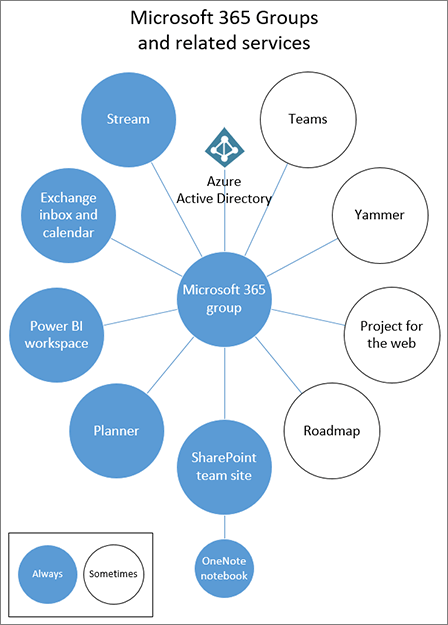
- With Microsoft 365 group we don’t need to give permissions separately to above resources. When we add users to the group it automatically gives the permission to the respective resources
- When we create a M365 group in SharePoint or in Outlook, group is visible in Outlook
- When Team in Teams is created by default M365 group is hidden in Outlook but with PowerShell we can make it visible
How Teams are related with Microsoft Group
- When we create Team, Microsoft 365 group is created to manage team members
- The group related services are also created like SharePoint Team site
- If we remove a member of team, they are removed from Microsoft 365 Group as well
- If we remove a member from Group, user will be removed from the Team and Channel
How does Teams supports Managed Identities
- Teams supports all identity models that are available with Microsoft 365
- Teams leverages identities stored in Azure Active Directory (Azure AD)
- Team uses three identity models
- Cloud Identity – User is created and managed in Microsoft 365 and stored in Azure AD
- Synchronized Identity – User identity is managed in On-Premises server
- Federated Identity – requires a synchronized identity where user password is verified by on-premises identity provider like ADFS
Which regions Teams support to store data
- Teams store data in geographic region associated with our Tenant
- Currently, Team supports the Australia, Canada, France, India, South Africa, South Korea, United Kingdom, Americas, APAC and EMEA regions
Which are the Team Management Tools
- GUI Tools
- Microsoft Teams admin center
- Azure Active Directory admin center
- Microsoft 365 admin center
- Microsoft 365 security center and compliance center
- Command-line and automation tools
- PowerShell, for configuration and limited lifecycle management
- Graph API, for lifecycle management
I’ll stop here 🙂 In next upcoming articles I’ll share more about Microsoft Teams, M365 Groups.
We will have other very good team articles, to know more about teams kindly please have a look – https://knowledge-junction.in/?s=Teams
Thanks for reading 🙂 If its worth at least reading once, kindly please like and share 🙂 SHARING IS CARING 🙂
Enjoy the beautiful life 🙂 Have a FUN 🙂 HAVE A SAFE LIFE 🙂 TAKE CARE 🙂


Thanks for sharing this article.
Thanks for reading 🙂 Welcome.