Microsoft Teams : Integrating with Service Now – Part 1 – Connecting to Service Now from Power Automate

Hi All,
LIFE IS BEAUTIFUL 🙂 I hope we all are safe 🙂 STAY SAFE, STAY HEALTHY, STAY HOME 🙂
Use Case / Background: In one of our project we have requirement that – Incident should be created in Service Now when we post message in Teams channel. Since this is new for me so study/learning begins 🙂 and as usual sharing as well 🙂
So first step here I am trying to create the service now connection from Power Automate and hence this article 🙂
Details :
- To connect to the ServiceNow from Power Automate we need ServiceNow URL (ServiceNow Instance) and ServiceNow account credentials
- For our demo purpose we will create free ServiceNow developer account
Service Now :
- ServiceNow allows us to create developer free account.
- This developer account we can use for connecting the Service Now from Power Automate
- If you already have Service Now developer account then please skip below step
- Creating Service Now developer account :
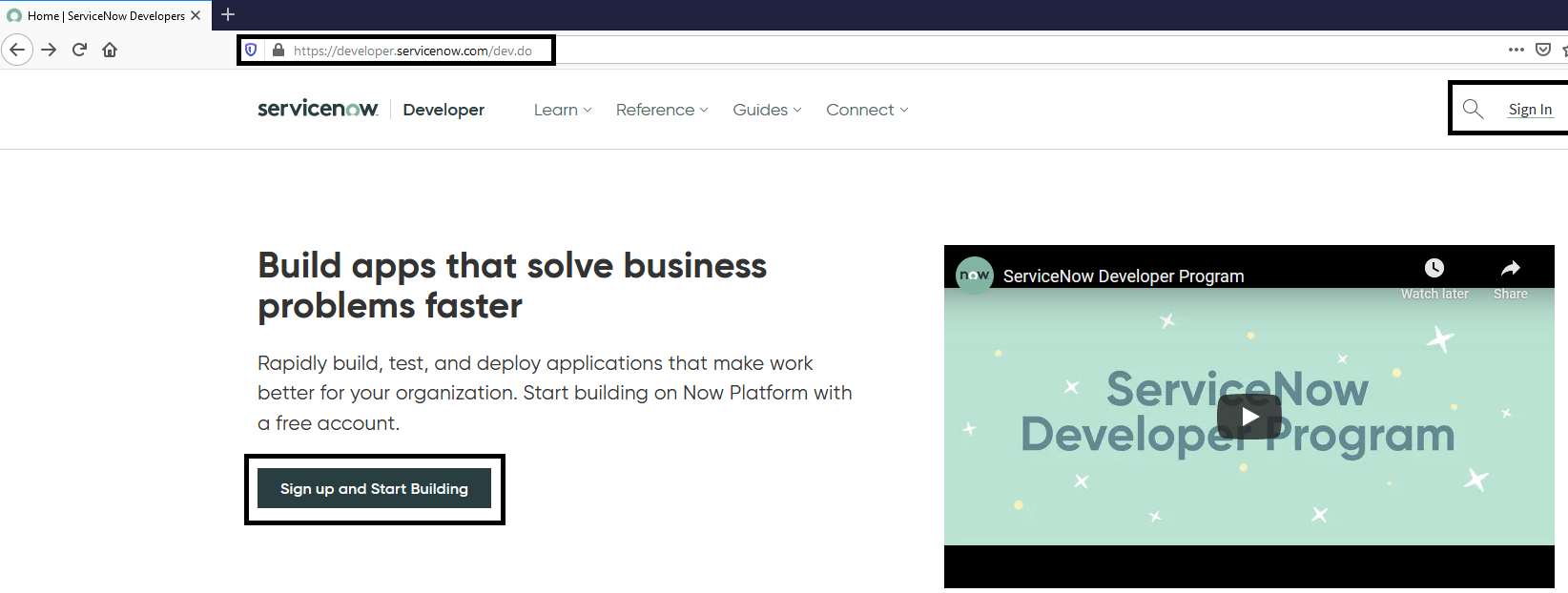
- Go to the site – https://developer.servicenow.com as shown in below Fig1
- Click on “Sign up and Start Building” button as shown in below Fig1
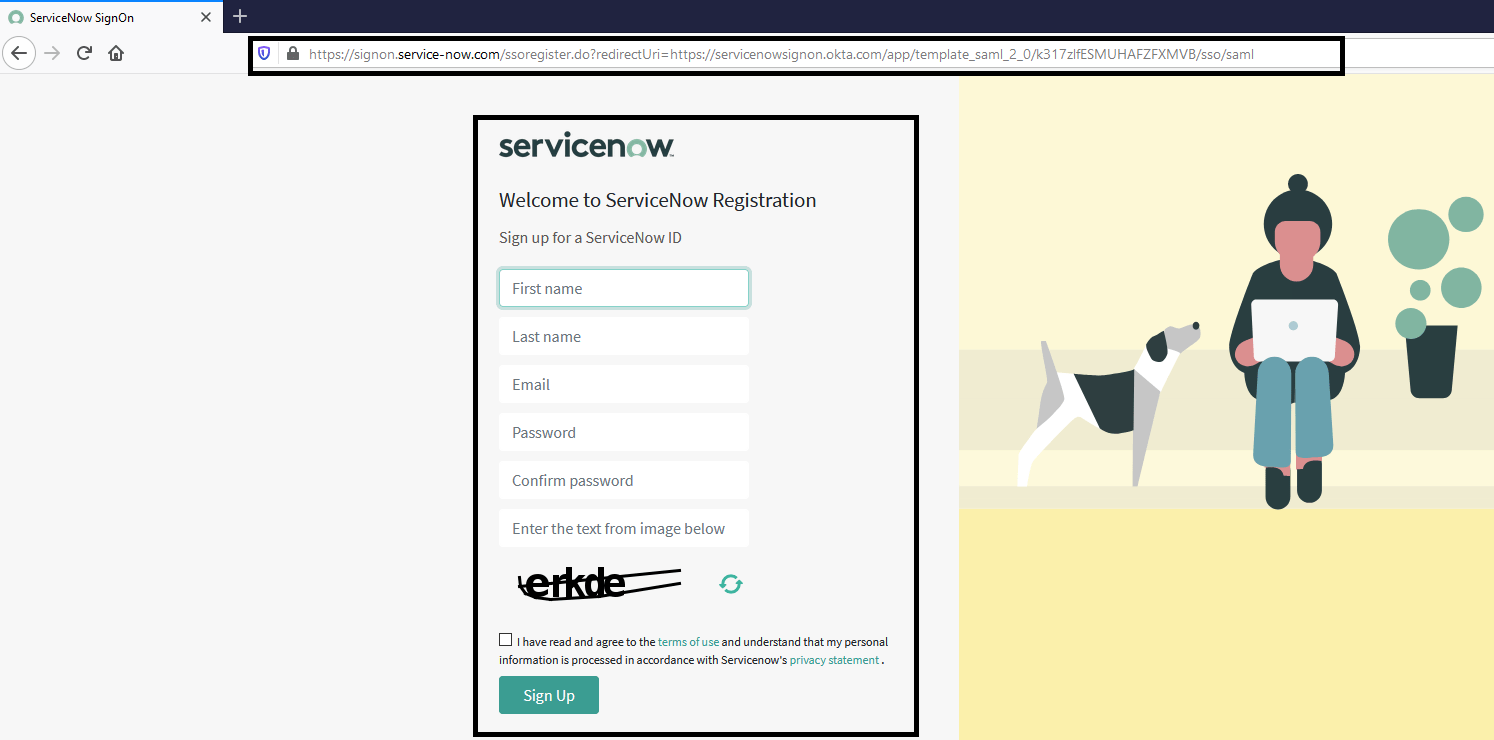
- Once we have user registered, just verify your account by clicking the link from email which you received and we are ready to go
Power Automate :
- Once we ready to with Service Now developer account we are ready to create the connection to Service Now from Power Automate
- Go to the Power Automate home page
- From left side pane, please click on “Connectors” as

- We will be redirected to Connectors page and there please search for “Service” string in search box as
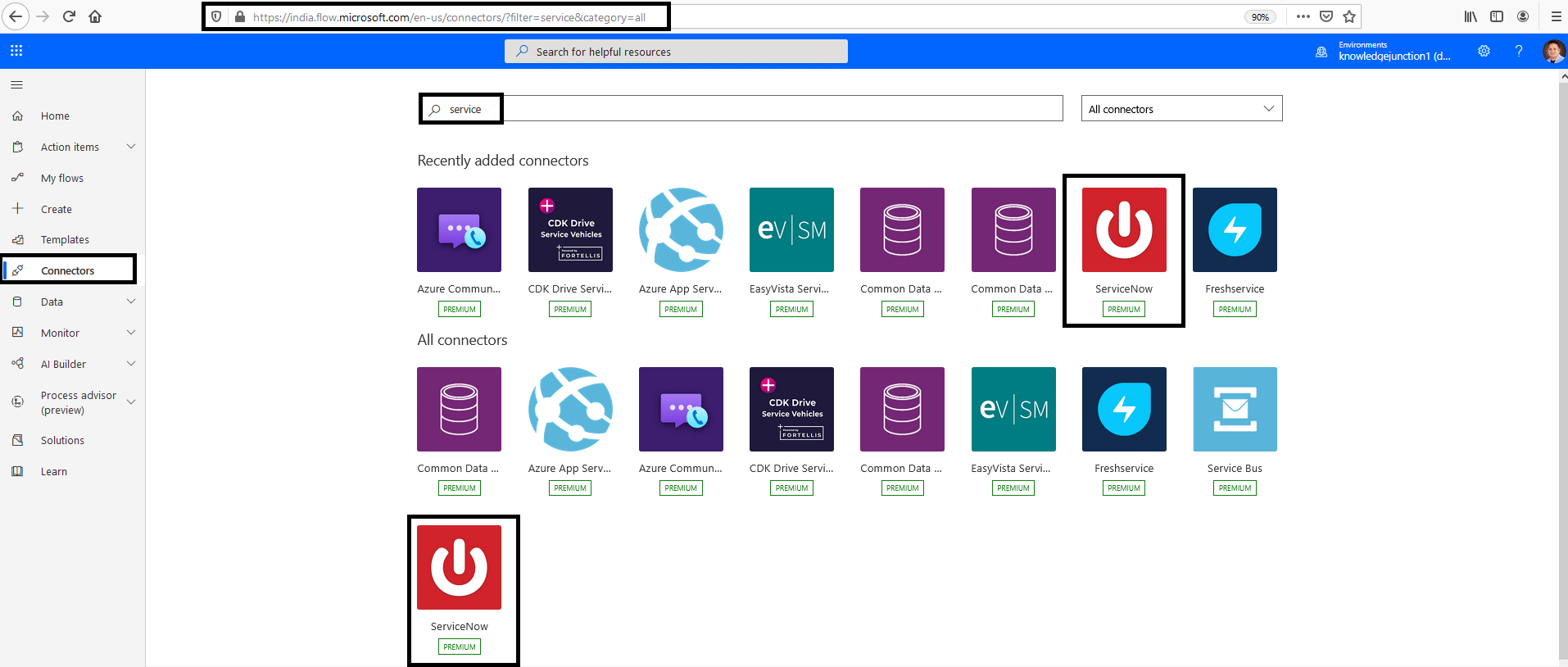
- Select the “ServiceNow” connector as shown in above Fig4
- We will be redirected to ServiceNow connector page – https://india.flow.microsoft.com/en-us/connectors/shared_service-now/servicenow/ as

- From the above Fig5 we will see some useful OOB actions available from Microsoft
- Select any action, here we will select action say – “Email me a list of ServiceNow Incidents created last week“, and here we need to create the connection to ServiceNow as
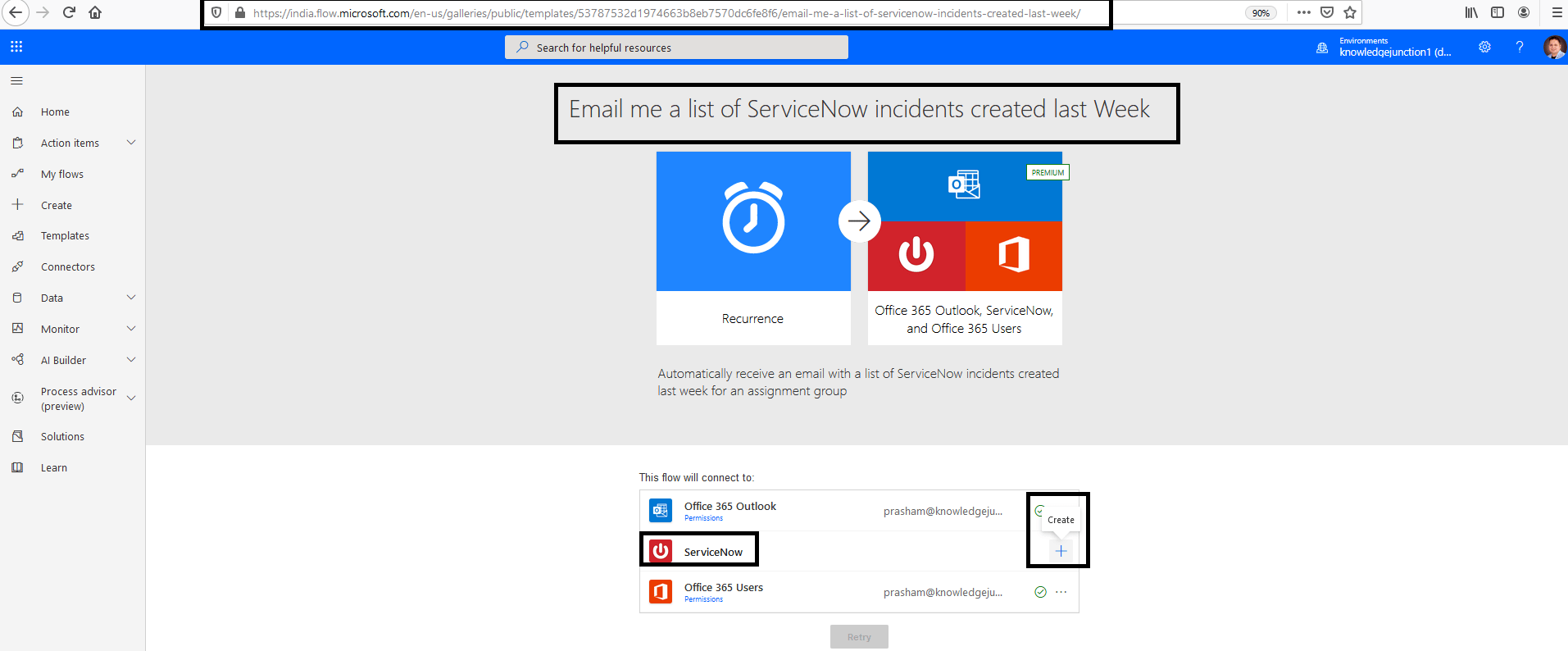
- Once we click on “+” sign we will get a popup to create connection as
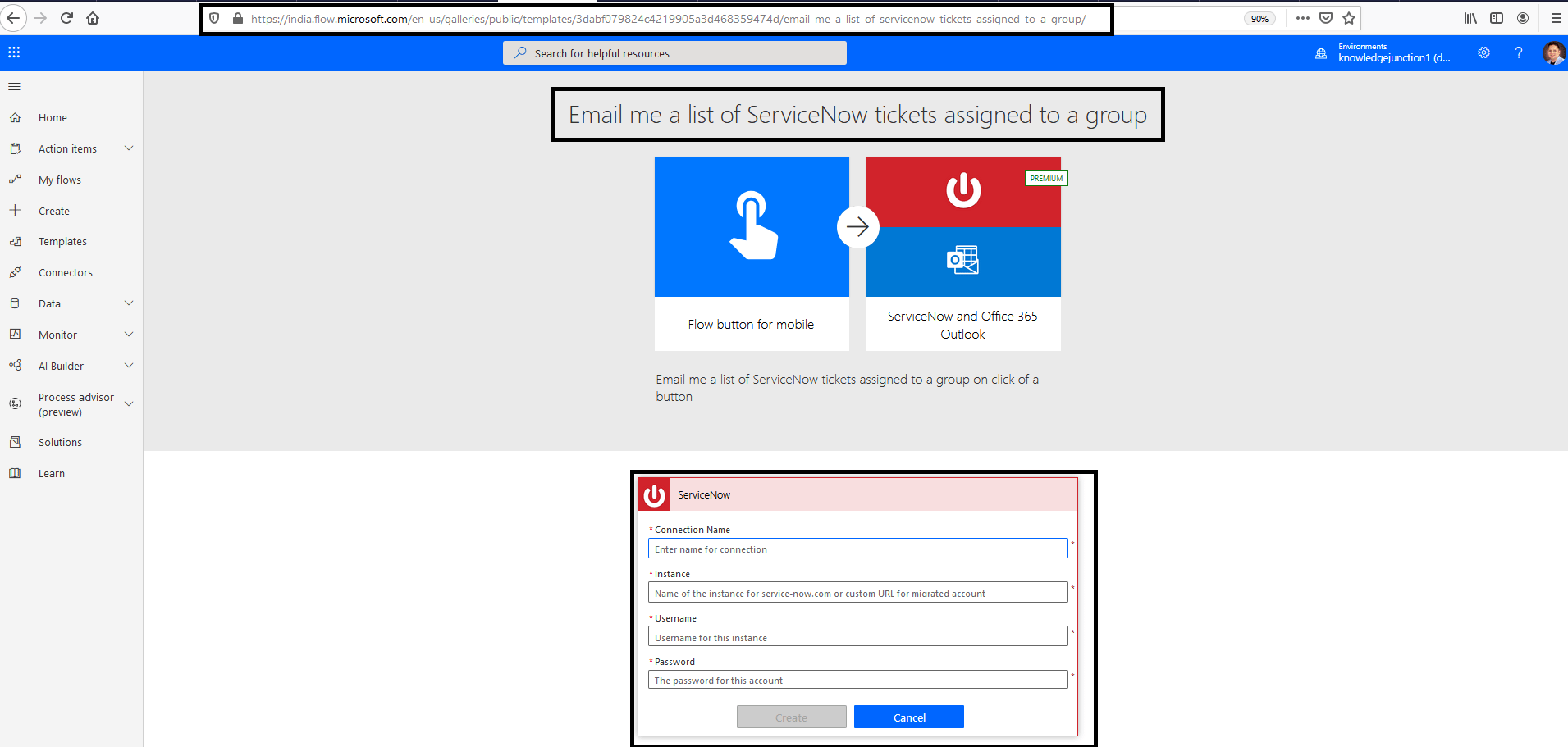
- Please enter “Connection Name”
- Instance is => URL of service now – https://dev.service-now.com/navpage.do
- Enter the respective credentials
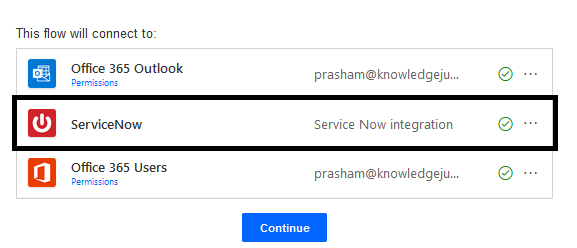
- Once we could connected successfully we could see it as shown in below fig
I’ll stop here, in next article we will execute OOB flow to get all the tickets which are assigned to me , discuss and proceed further
Thanks for reading 🙂 Feel free to discuss / comments / questions 🙂 SHARING IS CARING 🙂
Share In Teams:Enjoy the beautiful life 🙂 Have a FUN 🙂 HAVE A SAFE LIFE 🙂 TAKE CARE 🙂


3 Responses
[…] last article – Microsoft Teams : Integrating with Service Now – Part 1 – Connecting to Service Now from Power A… – we discussed how create ServiceNow connection from Power […]
[…] Microsoft Teams : Integrating with Service Now – Part 1 – Connecting to Service Now from Power A… […]
[…] Microsoft Teams : Integrating with Service Now – Part 1 – Connecting to Service Now from Power A… […]