Power Platform – Executing Azure SQL stored procedure from Power Automate – Part 1 – Adding SQL Server Connector

Power Automate - SQL Server connector
Hi All,
Greetings for the day 🙂 LIFE IS BEAUTIFUL 🙂 I hope we all are safe 🙂 STAY SAFE, STAY HEALTHY 🙂
Today new learning 🙂
Background / Use Case / User Story :
- In one of my application I need to update the database table in Azure SQL.
- But table need to update based on certain condition.
- We are automating Azure guest user management.
- Condition is if guest user is successfully added to group then update our custom database.
- We have Power Automate, calling Microsoft Graph Rest API to add guest user to group.
- So we have written stored procedure in Azure SQL and calling from Power Automate based on success of Microsoft Graph Rest API.
Take away from this article:
- Connecting to Azure SQL through Power Automate using “SQL Server” connector
Connecting to Azure SQL through Power Automate:
- I have already created SQL db in Azure
- Lets log in to Microsoft Azure – https://portal.azure.com/#home

- I am using SQL server management studio (SSMS) since which is very easy to use 🙂
- Connecting our Azure SQL using SSMS

- Now once we have DB ready we are ready to connect it through Power Automate
- For connecting SQL Server from Power Automate we have Power Automate connector “SQL Server” available
- From Power Automate home page, navigate to “Connectors” from left side pane and search for SQL server connector as

- Please note that SQL Server connector is available for PREMIUM license
- There are various triggers and actions available for SQL Server as

- We will create new connection to SQL server
- To create new connection, from left side pane navigate to Data >> Connections as

- Click “+” sign as shown in above fig to add new connection
- Pop up will appear for selecting the Authentication Type as

- Here we will select “SQL Server Authentication” as Authentication Type.
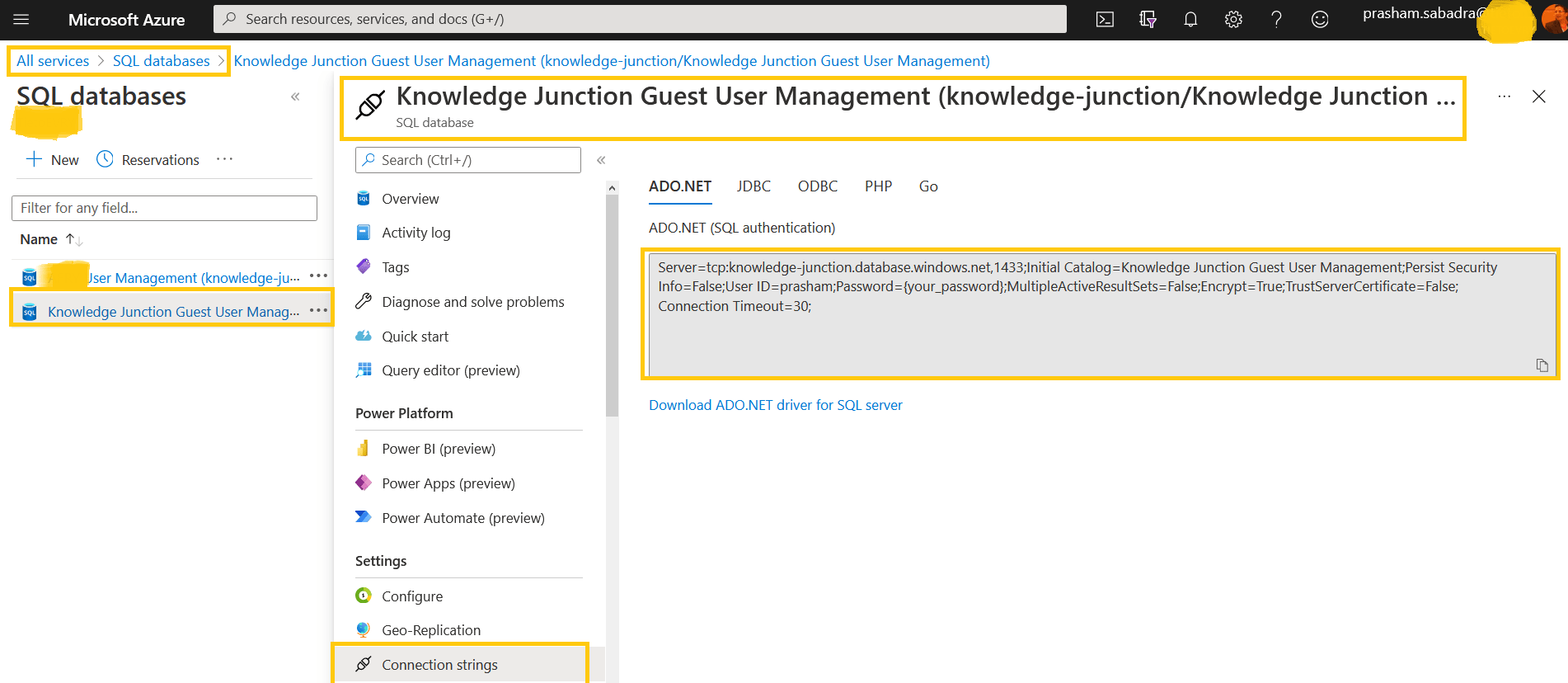
- For “SQL Server Authentication” as Authentication Type we need to specify following details as
- SQL server name
- SQL database name
- Username
- Password

- We will get all the details from Azure Portal => from connection string as
- Once we provided all the required details, next dialog will appear showing the progress for “Adding connection...” as

- On successful addition of SQL Server connection, it will be listed under connection listings as

- We could Edit / Share the respective connection as shown in above fig
- Lets see the details for our newly added SQL Server connection as

In this way we could add connector to SQL Server through Power Automate. We are ready to use SQL Server triggers / actions.
Next Article : In next article we will discuss how to execute the stored procedure from Power Automate
Reference:
To understand Power Platform in depth please have a look our articles once –
- Power Platform – https://knowledge-junction.in/?s=Power+Platform
- Power Apps – https://knowledge-junction.in/?s=Power+Apps
- Power Automate – https://knowledge-junction.in/?s=Power+Automate
- Power BI – https://knowledge-junction.in/?s=Power+BI
Thanks for reading 🙂 If its worth at least reading once, kindly please like and share 🙂 SHARING IS CARING 🙂
Share In Teams:Enjoy the beautiful life 🙂 Have a FUN 🙂 HAVE A SAFE LIFE 🙂 TAKE CARE 🙂


1 Response
[…] Azure SQL stored procedure from Power Automate. This is second part. In first part – “Power Platform – Executing Azure SQL stored procedure from Power Automate – Part 1 – Adding SQ… ” we discussed how to use “SQL Server” connector in Power […]