Microsoft 365 – Power Platform – Power Apps – Empowering Your Learning Journey: A Comprehensive Guide to Power Apps for Beginners – No Code, No Problem: Designing Your Business with Canvas Apps in the Power Apps Wonderland – Part 3

“You are never too old to set another goal or dream a new dream”
Hello Everyone,
Hope you all are doing well.
Welcome to Power Apps Wonderland!
Hey there, future app creator! Today, we’re diving into the magic world of Power Apps – where you can make your very own apps without needing to be a coding wizard. Think of Power Apps like a superhero toolkit for building custom business apps super-fast!
To delve deeper into Power Apps, explore the Power Platform, understand Power Apps licensing, and kickstart your journey with Power Apps, check out the detailed information available at the following link –
- https://knowledge-junction.in/2023/11/17/microsoft-365-power-platform-power-apps-empowering-your-learning-journey-a-comprehensive-guide-to-power-apps-for-beginners-part-1/
- https://knowledge-junction.in/2023/11/20/microsoft-365-power-platform-power-apps-empowering-your-learning-journey-a-comprehensive-guide-to-power-apps-for-beginners-part-2/
Key takeaways from this article
Learn to unleash the power of Power Apps:
- Toolbox Tour: Explore apps, services, connectors, and a robust data platform.
- App Types: Dive into Canvas Apps, Model-driven Apps, and Portals.
- No Code Magic: Discover the ease of Canvas Apps – no coding required.
- Connectivity: See how Canvas Apps communicate across various sources.
- Sharing Brilliance: Craft, share, and integrate your Canvas App effortlessly.
- Development Basics: Get hands-on with the Canvas App development process.
- Key Elements: Understand menus, toolbars, triggers, navigation, galleries, and forms.
- Design and Responsiveness: Master app design, responsiveness, and dynamic elements.
- Data Mastery: Manipulate data using collections and variables effectively.
- Team Collaboration: Share your masterpiece and manage permissions seamlessly.
- Next Chapter Tease: Stay tuned for an exciting dive into SPFx and Power Apps!
What’s in the Power Apps Toolbox?
Power Apps isn’t just one app: it’s like a super cool toolbox with different tools inside. It has apps, services, connectors, and a data platform – all helping you create your very own apps for your business needs.
Three Types of Power Apps
Power Apps has three main types of apps, and they each have their own superpowers:
- Canvas Apps: Your Digital Art Studio
- Imagine starting with a blank canvas, like when you draw or paint. That’s how Canvas Apps work! You get to create your app from scratch, making it look and feel exactly the way you want. It’s like building your own digital masterpiece. And guess what? You can use it on the web, your phone, or a tablet!
- Model-driven Apps: Apps that Follow Your Data’s Lead
- These apps are a bit different. They start with your data – like the information your business uses. It’s like building with blocks. You tell Power Apps about your data, and it automatically creates a cool and responsive app for you. If you’ve heard of something called Dynamics 365, its fancy interface is made using Model-driven Apps.
- Portals: Your App’s Front Door for Everyone
- Portals are like creating a special door for people outside your organization. It’s for folks like customers or partners. They can sign in, check out data, and even look around without signing in. It’s like building a door to the digital world for others!
Why Power Apps?
- Power Apps is awesome because it lets regular people, like you and me, make apps without being super techy. It’s like a shortcut for creating and using apps without the tech headaches.
- So, whether you’re starting with a blank canvas, shaping data into apps, or opening digital doors – Power Apps is here to help you bring your ideas to life.
What’s the Deal with Canvas Apps?
So, Canvas Apps are like our very own digital assistants for business tasks. We don’t need to be code wizards – Microsoft says we can design and build these apps on a canvas in Power Apps. Picture a blank page where we can put everything we need, just like setting up a PowerPoint slide.
- No Code Zone!
- Here’s the cool part – no complicated code! We get to drag and drop things onto our canvas, like playing with digital building blocks. It’s like creating a cool app without breaking a sweat.
- Logic and Data Made Simple
- When it’s time to make our app smart, we use Excel-like expressions. It’s not as scary as it sounds – it’s like giving our app simple instructions, almost like creating a recipe.
- Power to Connect Everywhere
- Canvas Apps can chat with lots of different sources, bringing in data from Microsoft and other tools. Imagine our app pulling in info from different places – making it a super helpful sidekick for our business tasks.
- Sharing the Awesomeness
- Once our app masterpiece is ready, we can share it! Everyone on our team can use it in a web browser, on their phones, or tablets – super convenient. And guess what? We can even stick our app into places like SharePoint, Power BI, or Teams to make it even more accessible.
Let’s Get Friendly with Canvas App Development!
Time to dive into Canvas App development. Don’t worry, we’re keeping it super simple. When you land on this tool, here’s what you need to know.
Where We Start:
- Visit the Playground:
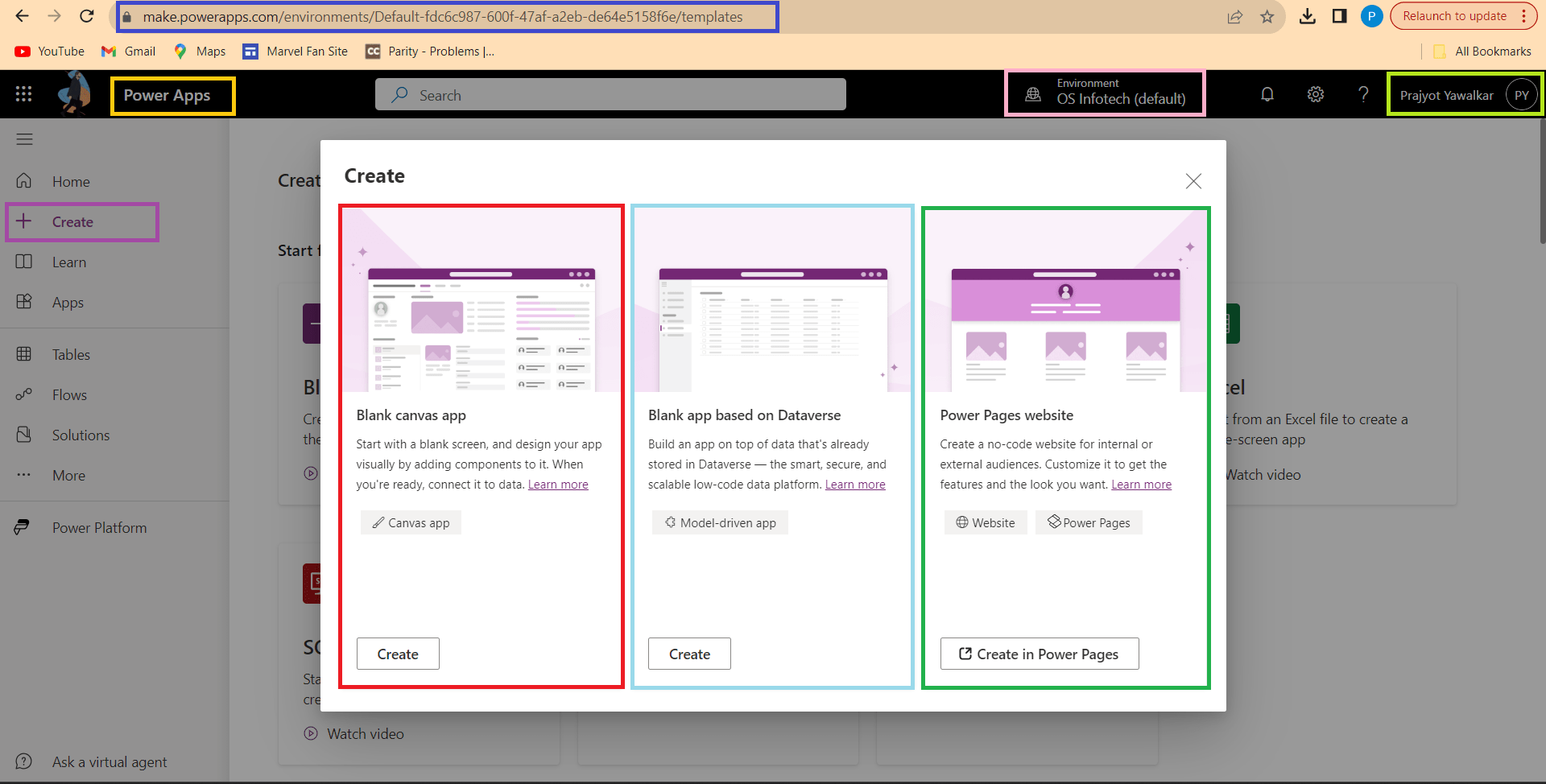
- Head over to make.powerapps.com – this is our starting point, where the magic begins!

- Create Our New App:
- Click on “Create” in the left menu.
- Let’s hit “Blank app” -> “Canvas”

- A form pops up, asking if we want a blank canvas or a template. We can also choose between a phone or tablet layout (tablets get some extra customization perks).
The App Creation Window:

- Canvas App Layout (Center):
- This is our app’s main area, like our canvas for drawing. Whatever we put here is what our app will look like.
- Left Menu (Elements and Data):
- This menu shows a tree of elements in our app and the data sources we can use. Think of it like a list of ingredients for our app.
- Right Menu (Properties):
- Click on something in our app, and this menu lets us tweak its properties. It’s like adjusting settings for each element.
- Top Menu (Insert Elements):
- Let’s use this menu to add new things to our canvas. It’s like a toolbox with all the cool stuff we can put in our app.
- List (Choose Properties or Actions):
- This list helps us pick what we want to change about an element in our app.
- Formula Bar (Write Instructions):
- Here, we can write simple instructions for what we want our app to do. It’s like giving our app a little list of tasks.
- File Tab (Settings and More):
- This is where we do some important stuff:
- Connect our app to data sources.
- Manage flows (kind of like automated tasks).
- Set our app’s name, icon, screen size, and other cool settings.
- Peek at the first records in our collections (that’s where our data hangs out).
- Check out variables and their values.
- Import pictures, videos, and audios into our app using the Media section.
Triggers: The Spark Plugs of Our App
Think of triggers as the buttons we press to make things happen in our app:

- OnSelect:
- Works on buttons and many controls.
- Runs the formula when the element is selected, like clicking a button.
- OnChange:
- Found in lists.
- Runs the formula when the user changes the option selected in the list.
- OnStart:
- Triggers the formula when the Canvas App starts.
- OnTimerEnd & OnTimerStart:
- Available for timers.
- Execute the formula when the timer ends or starts.
Navigation: Moving Around in Our App
In Canvas Apps, we can have different screens, like pages in a book. Here’s how we navigate:
- Add a New Screen:

- Go to Home -> New Screen.
- Navigate Function:

- Use the Navigate function to move between screens.
- For example, we can set a button’s OnSelect property to navigate to a specific screen when clicked.
Building Views with Galleries
Galleries are like fancy lists in Canvas Apps. They help us show records from a data source. Let’s add one:
- Insert a Gallery:

- Go to Insert -> Gallery.
- Connect to Data Source:
- Choose a data source, like Dynamics 365.
- Select an entity (like a category or group).
- Customize the Design:
- Add fields we want to display.
- We can get creative with design – add labels, icons, or images.
Data Forms: Where Data Takes Center Stage
Forms help us display and update data. They’re like the paperwork of our app:
- Main Functions:
- EditForm: Edit the data of a record.
- NewForm: Create a new record.
- SubmitForm: Save changes.
- ResetForm: Go back to the previous state.
Controls: Buttons, Inputs, and Outputs

- Buttons:
- Simple elements with an OnSelect trigger.
- Press a button, and the assigned formula runs.
- Inputs:
- Our app can take inputs like text boxes, lists, checkboxes, and more.
- Think of them like the fields we fill out on a form.
- Outputs:
- Our app can show images, icons, charts, and more.
- These are like the results or displays of our app.
Designing the Look and Feel
Designing in PowerApps is like playing with building blocks. We can:
- Drag & Drop Elements:
- Design with ease, like PowerPoint.
- Fill Properties:
- Adjust things like size, position, colors, and more.
- We can also use formulas for more dynamic designs.
- Responsiveness:
- Make our app adapt to different screen sizes.
- We can customize responsiveness based on device height and width.
Data Manipulation: Working with Our Info
- Collections:
- Think of them as local tables for our app.
- We can add, update, or look up data using functions like Clear, Collect, Update, and more.
- Variables:
- We can create global (app-wide) or contextual (screen-specific) variables.
- Use functions like Set or UpdateContext to give them values.
Let’s Share Our Canvas App with the Team!
We’ve crafted a stellar Canvas App, and now it’s time to spread the joy! Here’s our simple playbook on how we can share our masterpiece:
Who’s the Boss?
Remember, the person who brought this app to life is the boss, the owner. Initially, only the owner can access it, but we’re about to change that.
- Visit the Playground:
- Head over to make.powerapps.com – the place where the magic unfolds!
- Find Your App:
- Click on “Apps” in the left menu.
- Select Your App:
- Locate our awesome app in the list and give it a click.
- Menu Magic:

- Look to the left, and there’s a menu. Click on “Share.”
- Choose Your Guests:
- A new window appears. Here, we can type in the names or emails of the teammates we want to invite.
- Decide if they can only use the app or also share it with others.
- Check Permissions:
- Ensure our invited teammates have the right permissions for the data our app uses. No gate crashers allowed!
- Click “Share”:
- Hit that “Share” button, and voila, we’re done!
Now, our Canvas App is no longer a solo act – it’s a team effort! Everyone we invited can access and use the app. Let’s make sure we play nice with the data permissions.
Up Next in Our Learning Journey: Diving Deeper into SPFx and Power Apps!
Exciting times lie ahead as we embark on the next phase of our learning adventure. In the upcoming articles, we’ll unravel the mysteries surrounding SPFx and Power Apps, breaking down their differences, exploring the perks they offer, understanding how to use them effectively, and uncovering the key skills and tools essential for crafting with these powerful tools. Get ready to level up your skills as we delve into the world of SPFx and Power Apps. Stay tuned for more insights and discoveries.
Also get my article updates on my social media handles.
Twitter – https://twitter.com/PrajyotYawalkar?t=oovP0r9FnDtz5nNSJGKO0Q&s=09
LinkedIn – https://www.linkedin.com/in/prajyot-yawalkar-093716224/
Have a wonderful day.
Thanks for reading.


![PowerShell : resolving error - Method invocation failed because [System.Management.Automation.PSObject] does not contain a method named 'op_Addition'](https://i0.wp.com/knowledge-junction.in/wp-content/uploads/2024/06/fig1.png?fit=944%2C103&ssl=1&resize=40%2C40)

5 Responses
[…] No Code Magic: Unleash creativity with Canvas Apps. Discover Part 3. […]
[…] No Code Magic: Unleash creativity with Canvas Apps. Discover Part 3. […]
[…] No Code Magic: Unleash creativity with Canvas Apps. Discover Part 3. […]
[…] No Code Magic: Unleash creativity with Canvas Apps. Discover Part 3. […]
[…] No Code Magic: Unleash creativity with Canvas Apps. Discover Part 3. […]