PowerShell ISE – resolving issue – Get-SPWebApplication : The term ‘Get-SPWebApplication’ is not recognized as the name of a cmdlet, function, script file, or operable program. Check the spelling of the name, or if a path was included, verify that the path is correct and try again. Bit about Add-PSSnapin

PowerShell ISE - SharePoint module - "Microsoft.SharePoint.PowerShell" imported using "Add-PSSnapin"
Hi All,
Greetings for the day 🙂 LIFE IS BEAUTIFUL 🙂
Today small common issue 🙂 and quick resolution 🙂
Background / Details :
- SharePoint migration going on. We have migrated our SharePoint 2010 application to SharePoint 2013 application
- Databases are mounted to our new SharePoint 2013 web application
- Sites are opening properly in SharePoint 2010 UI
- Next step is to Visually upgrade all Site Collections so that they have SharePoint 2013 UI
- Since we have huge number of site collections, PowerShell our friend 🙂
- So started to write the PowerShell script and first step to get the web application to fetch all site collections to upgrade as
$webApp = Get-SPWebApplication -Identity "http://knowledgejunction.sharepoint.com/"Issue / Error :
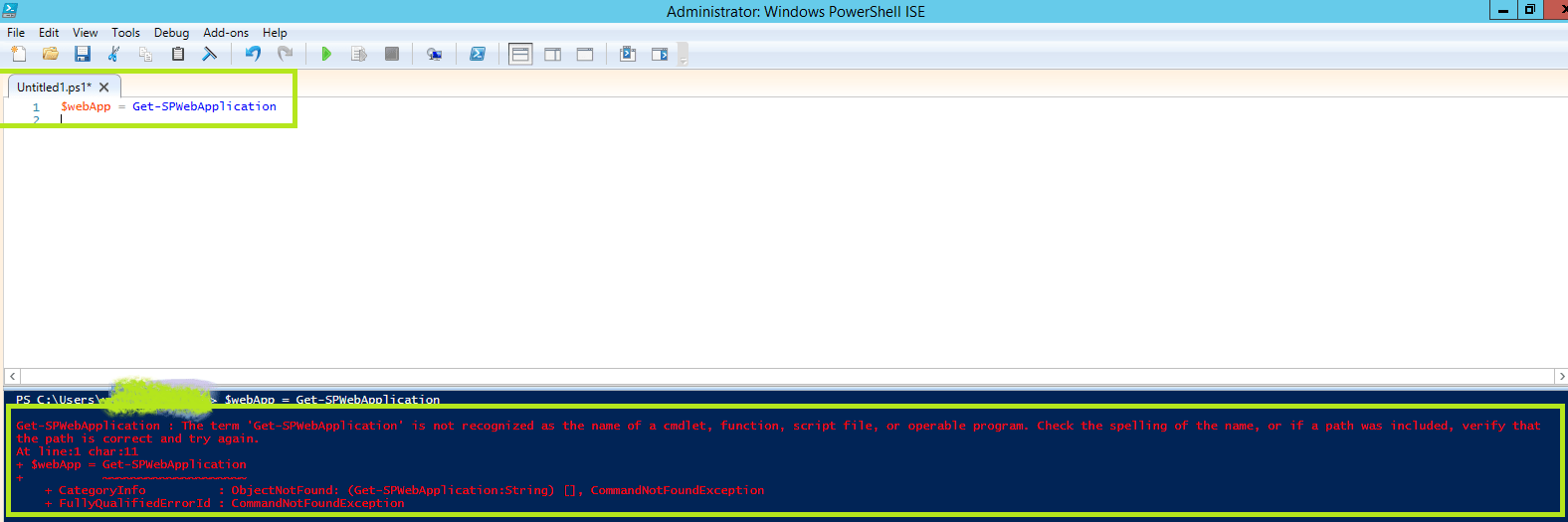
Get-SPWebApplication : The term ‘Get-SPWebApplication’ is not recognized as the name of a cmdlet, function, script file, or operable program. Check the spelling of the name, or if a path was included, verify that
the path is correct and try again
Solution :
- Issue is – SharePoint module is not imported in PowerShell ISE – SharePoint snap-in is not added
- We could import SharePoint module by using Add-PSSnapin command as
#Add Microsoft SharePoint snap-in to the current session of PowerShell
Add-PSSnapin Microsoft.SharePoint.PowerShell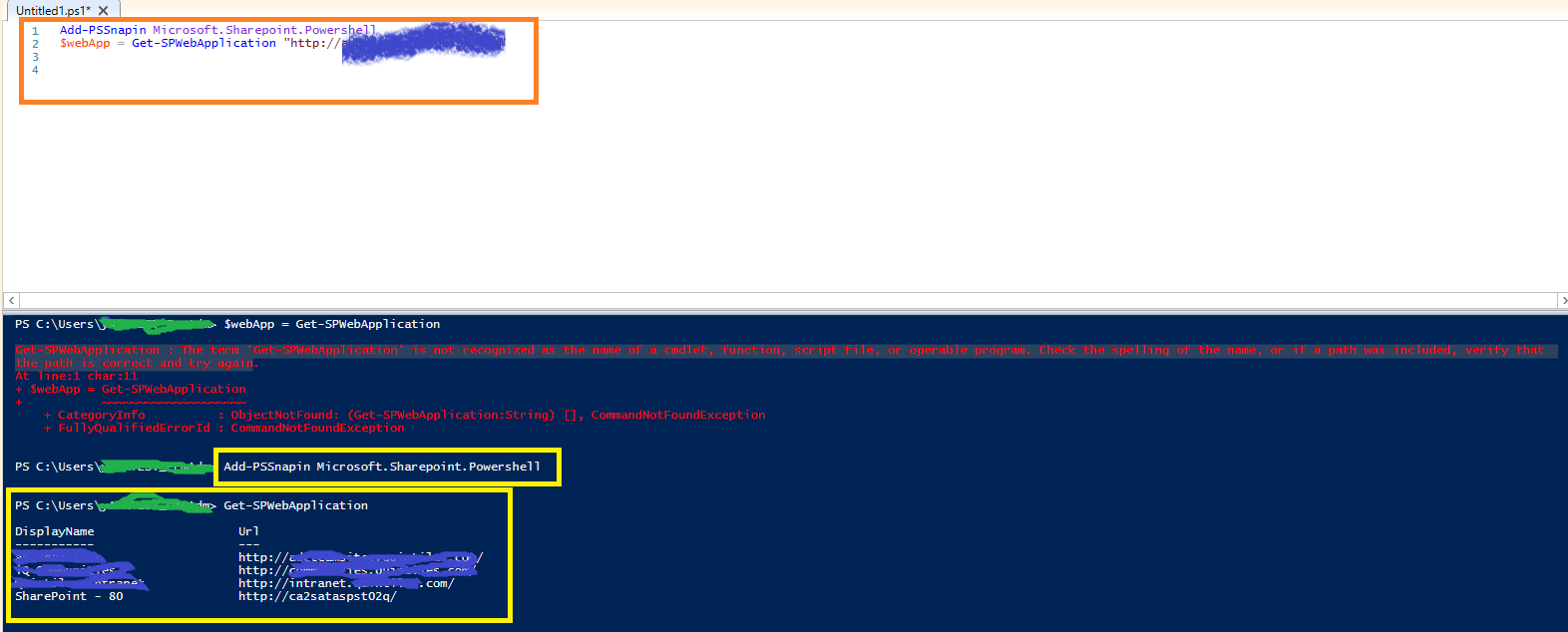
- After adding SharePoint snap in to the current session of PowerShell SharePoint CMDLETS working like a charm 🙂
Bit about “Add-PSSnapin”
- “Add-PSSnapin” CMDLET adds one or more Windows PowerShell snap-ins to the current session
Add-PSSnapin
   [-Name] <String[]>
   [-PassThru]
[<CommonParameters>]- Once we add sanp-in, we can use the cmdlets and providers that the snap-ins support in the current session as we did for SharePoint snap-in
"Add-PSSnapin"adds the snap-in only to the current session of PowerShell ISE. To add the snap-in to all Windows PowerShell sessions, we need to add it to our Windows PowerShell profile- Before adding a snap-in,
"Add-PSSnapin"checks the version of the snap-in to verify that it is compatible with the current version of Windows PowerShell. If the snap-in fails the version check, Windows PowerShell reports an error
Thanks for reading 🙂 If its worth at least reading once, kindly please like and share 🙂 SHARING IS CARING 🙂
Enjoy the beautiful life 🙂 Have a FUN 🙂 HAVE A SAFE LIFE 🙂 TAKE CARE 🙂


2 Responses
[…] Add Microsoft SharePoint snap-in to the current session of PowerShell. Otherwise for SharePoint CMDLET we get an error as discussed in last article – PowerShell ISE – resolving issue – Get-SPWebApplication : The term ‘Get-SPWebApplication’ is… […]
[…] Add Microsoft SharePoint snap-in to the current session of PowerShell. Otherwise for SharePoint CMDLET we get an error as discussed in last article – PowerShell ISE – resolving issue – Get-SPWebApplication : The term ‘Get-SPWebApplication’ is… […]