Power Platform : Power Automate – Exploring Do until control – Demo

Power Automate - Do until condition control
Hi All,
Greetings for the day !!!
Today new small learning.
Background / Use Case:
- We have SharePoint list having following columns
- “Reviewer” of type “Person and Group” and Person only – default value is empty / null
- “Approval Status” of type “Choice” with following choices
- Submitted – default option
- Under Review – Once reviewer assigned in “Reviewer” column status should be updated to this value
- Approved
- Rejected
- As user submit the request – email sent to group of reviewers and any once reviewer assign an item to self by updating “Reviewer” column
- We need to wait till “Reviewer” is assigned and send reminder to reviewer on a frequency of every day
- Once “Reviewer” is assigned we need to send an email and change the choice in “Approval Status” column from “Submitted” to “Under Review“
- So in this case we need to wait till the reviewer is assigned and here – Do until condition control comes into the picture
Details :
- What is Do until control in Power Automate
- Condition action – condition control
- In our Power Automate some time we need to repeat certain steps until specified / given condition is satisfied. To have such feature we have Do until control in Power Automate
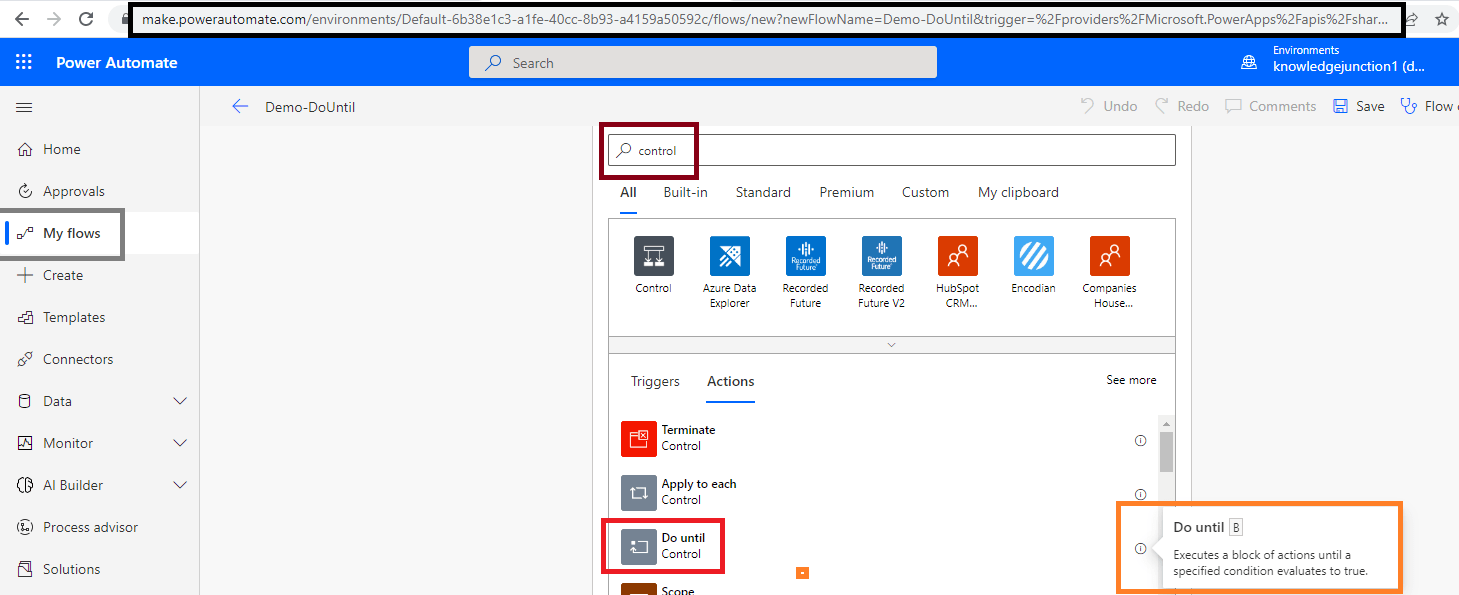
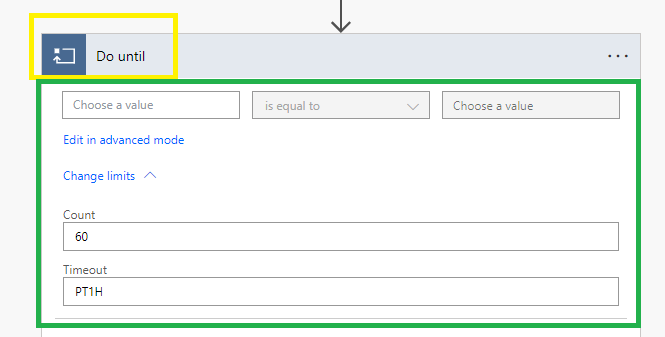
- We could add the actions under “Do until” control which we want to repeat
- Do until limits
- There are two parameters of Limits
- Count :
- These many times actions under “Do until” will get executed
- Loop will executed these many number of times
- So either condition will evaluated true or count limit will satisfied (count number will reach). In either case “Do until” will exit
- Default value for count is 60
- We can extend count limit till 5000
- Timeout
- Default Timeout is “PT1H” – 1 Hour
- Here,
- P – Period
- T – Time unit
- H – Hour
- This means flow will stop after the 1 hour or condition will met or count number is reached
- Examples –
- P4D – 4 days
- PT9H – 9 Hours
- P9DT9H9M – 9 days 9 Hours 9 Minutes
- P2M – 1 month
- PT2M – 2 minute
- Maximum duration or timeout for the loop is 30 days
Demo :
- Lets demonstrate our use case
- Prerequisites:
- SharePoint list – following is the list created
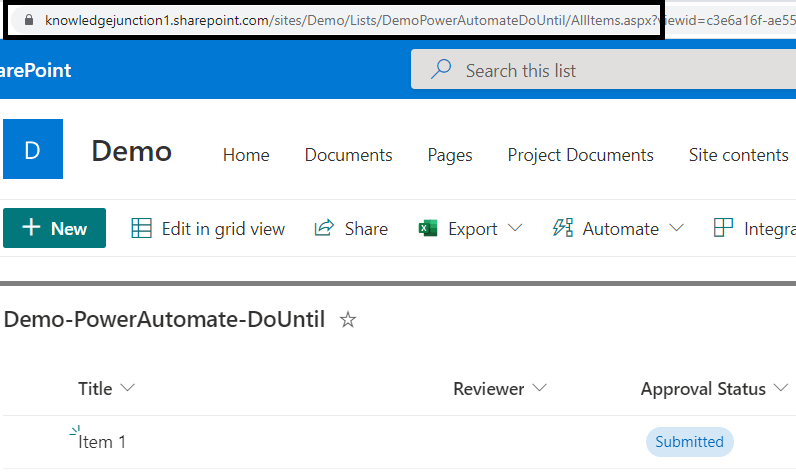
- Create a new flow – Automated cloud flow
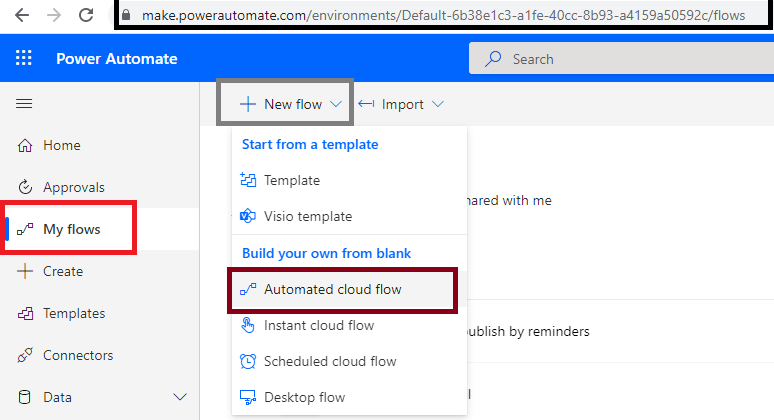
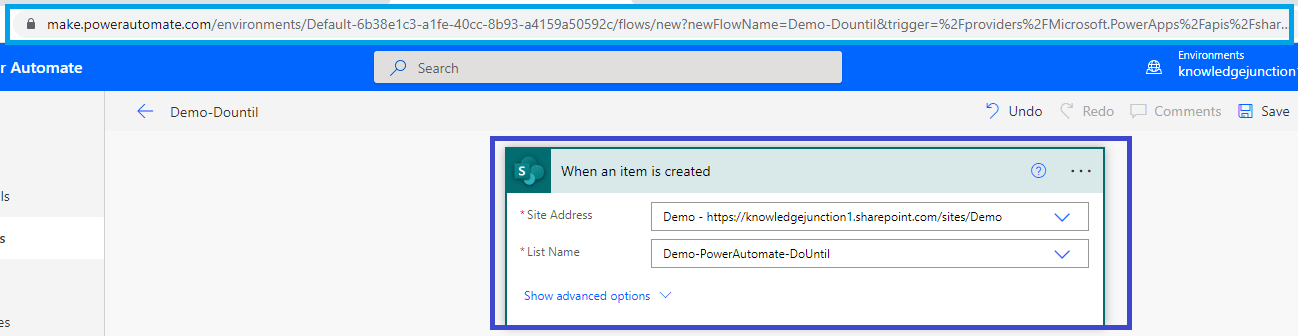
- We will trigger a flow when new item will be created in SharePoint list
- Flow name – Demo-Dountil

- Enter the details
- Site Address
- List Name
- Initialize the variable – reviewerEmail
- We will initialize the variable with list field – “Reviewer Email”

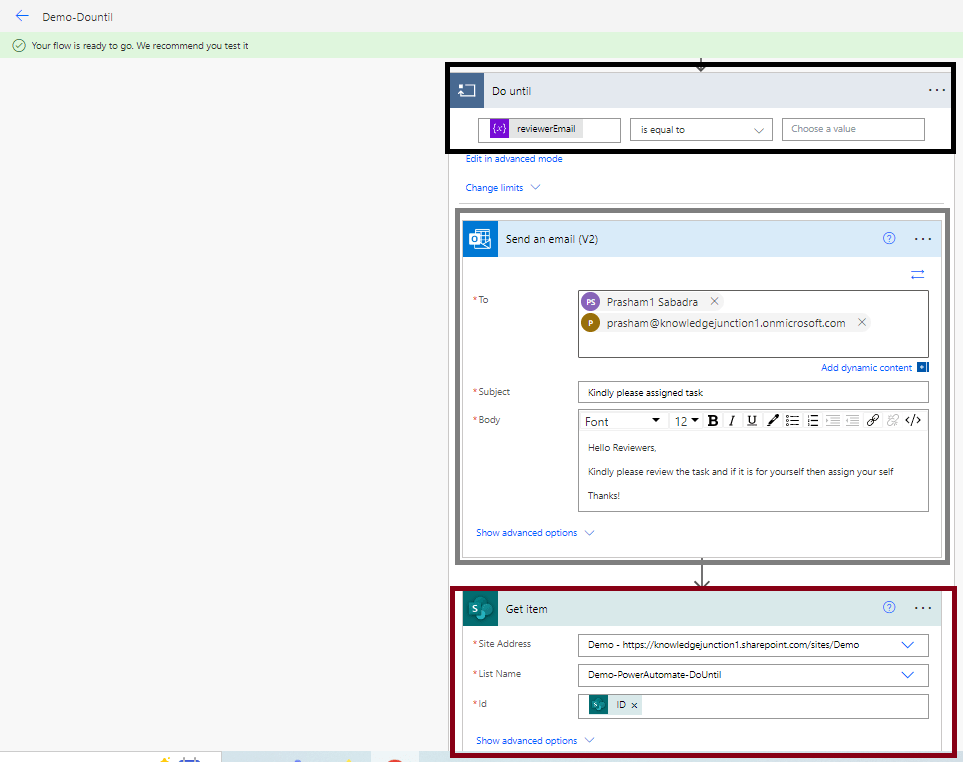
- Next step is adding – Do until control condition
- Actions in our Do until control will be executed until the reviewer get assigned
- So we have condition like – reviewerEmail is empty
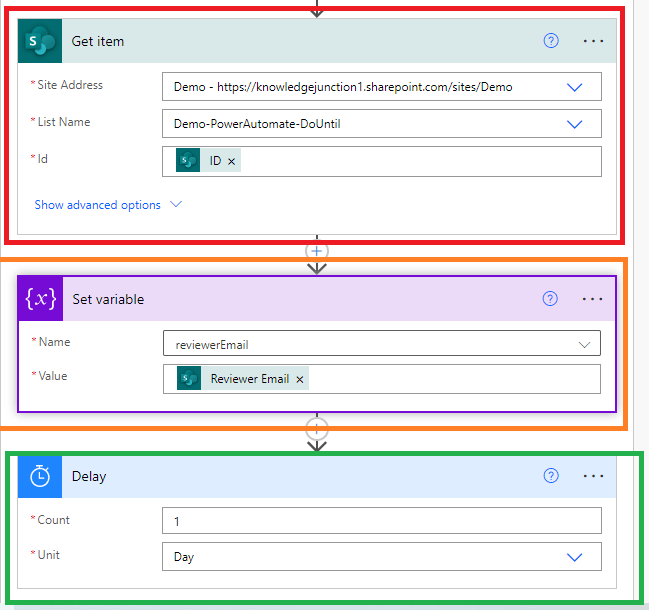
- We are using “Delay” action to verify again on next day
- We are again reading SharePoint item and updating our variable – “reviewerEmail”
- Once “Reviewer” is assigned – this means “Reviewer” field have value “Do until” control will exit
Thanks for reading !!! Please feel free to discuss / suggestions / share thoughts !!!
HAVE A GREAT TIME AHEAD !!! LIFE IS BEAUTIFUL 🙂


You must be logged in to post a comment.