SharePoint 2016 – Resolving error – Microsoft SharePoint Foundation Usage service application not found

Hi All,
Greetings for the day 🙂 LIFE IS BEAUTIFUL 🙂
Today new issue and resolution 🙂
Background / Issue :
We were migrating our SharePoint 2013 application to SharePoint 2016. We are using database attachment method. One of the step in this migration process is “to deploy our custom solutions” to new environment – SharePoint 2016. So we started deploying our custom solutions in new SharePoint 2016 environment.
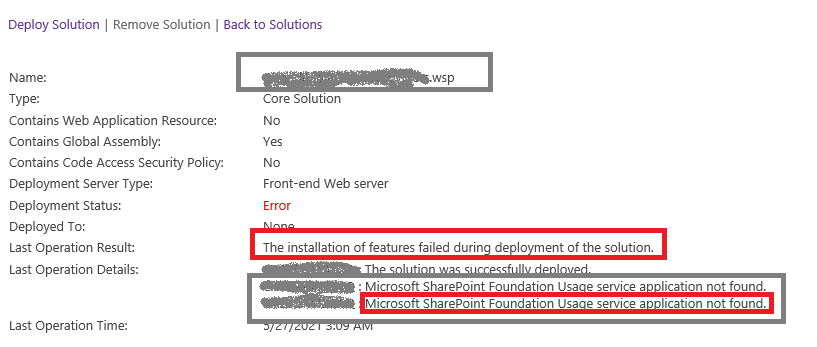
One of our solution creates custom category and area in diagnostic logging. While deploying this solution we have following error :
Microsoft SharePoint Foundation Usage service application not found
Cause :
- Reason behind this error is – On our new SharePoint 2016 server there is no “Usage & Health Service Application” service application provisioned
What is “Usage & Health Service Application” service application :
- Usage & Health Service Application is one of the most important Service Applications
- This Service Application provides very important information on the Health & State of SharePoint Farm
- In SharePoint 2016, Usage Service is collecting information on
- Timer Service Monitoring
- Event Logs
- Performance Counters
- Search Usage
- Sandbox Usage,
- Site Collection Usage and many others
- This Service application is keep monitoring the resource, health & state associated with the SharePoint Farm and logs this information to Log Files on SharePoint Hive or any designated path along with SharePoint Logging Database “WSS_Logging” in SQL Server Database
- This service application is not directly created from Central Administration from “Manage Service Application (/_admin/ServiceApplications.aspx)” page so we have option of PowerShell only
Solution / Approach : We provisioned “Usage & Health Service Application” service application using PowerShell and could deploy our solution successfully 🙂
Following are the step by step PowerShell CMDLETs :
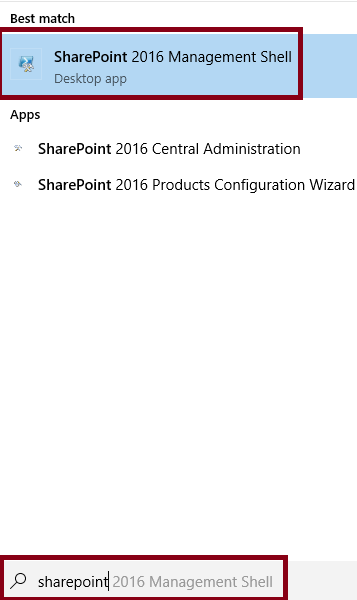
- Start “SharePoint 2016 Management Shell” as

- We will provision the “Usage service” as, we will use “New-SPUsageApplication” PowerShell CMDLET
New-SPUsageApplication -Name "Usage and Health Data Collection"- Once we have service application instance is in place, we will provision “Service Application Proxy” as
$serviceProxy = Get-SPServiceApplicationProxy | where {$_.TypeName -eq "Usage and Health Data Collection Proxy"}

$serviceProxy.Provision()
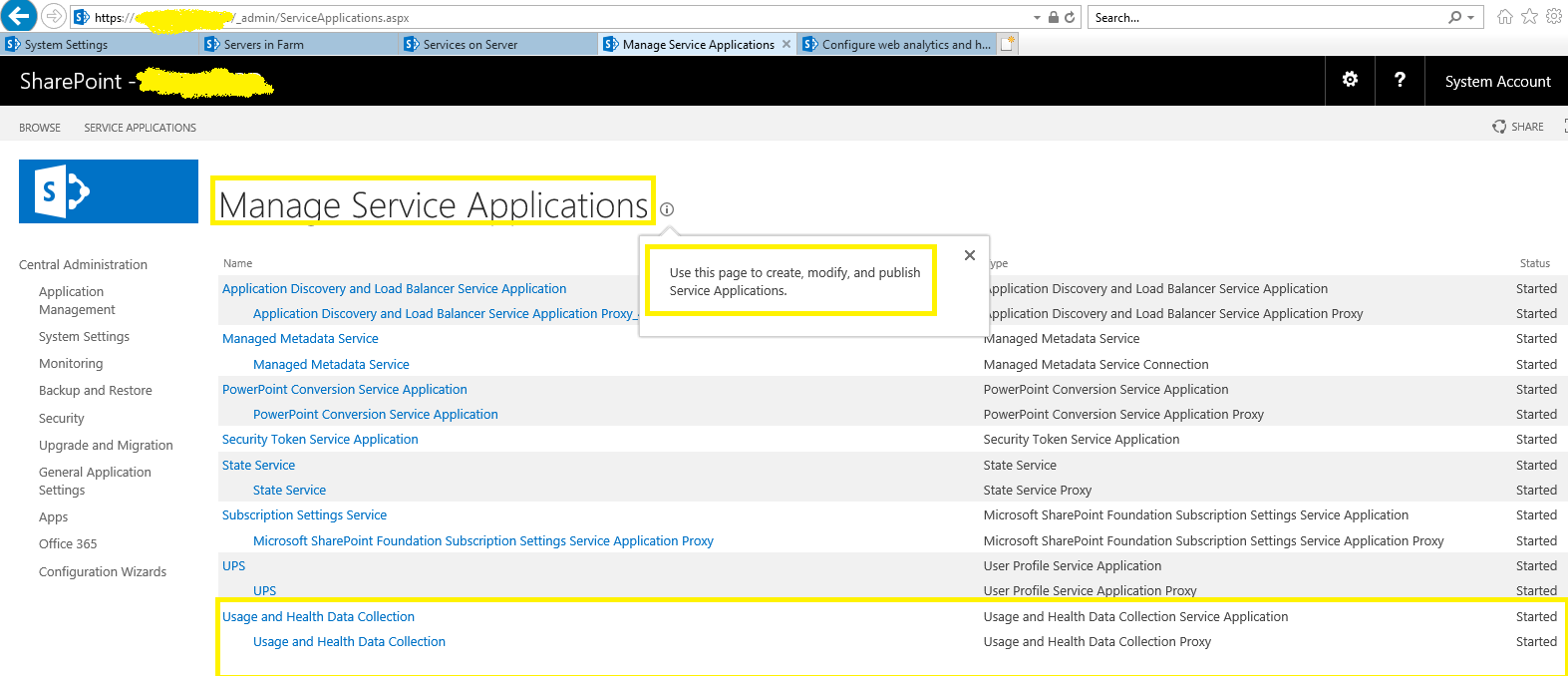
- From Central Administration we could verify service application from “Manage Service Application (/_admin/ServiceApplications.aspx)” page as
Complete PowerShell:
PS C:\> New-SPUsageApplication -Name "Usage and Health Data Collection"

DisplayName          TypeName             Id
-----------          --------             --
Usage and Health ... Usage and Health ... d8f3c688-01c3-4913-b7d4-8730105e347b


PS C:\> $serviceProxy = Get-SPServiceApplicationProxy | where {$_.TypeName -eq "Usage and Health Data Collection Proxy"}

PS C:\> $serviceProxy.Provision()
Thanks for reading 🙂 If its worth at least reading once, kindly please like and share 🙂 SHARE ING IS CARING 🙂
Share In Teams:Enjoy the beautiful life 🙂 Have a FUN 🙂 HAVE A SAFE LIFE 🙂 TAKE CARE 🙂


You must be logged in to post a comment.