SharePoint OnPremises – resolving issue – after migration to SharePoint 2013, three-time credentials asked while accessing the web application from the server and then blank page – DisableLoopbackCheck

Hi All,
Greetings for the day 🙂 LIFE IS BEAUTIFUL 🙂
Background : We are migrating our SharePoint 2010 application to SharePoint 2013. We were using content database attachment method. So as per the approach we have followed following steps
- We have restored SharePoint 2010 databases to SharePoint 2013 database server
- Created new web application with our custom header in SharePoint 2013 environment with the same header as in SharePoint 2010
- Removed the respective content database of new web application so that we can mount our required restored SharePoint 2010 database
- Successfully deployed our custom farm solution to new SharePoint 2013 web application
- Executed Test-SPContentDatabase CMDLET against new SharePoint 2013 web application to verify any issues, verified the logs. Corrected some minor issues and seems to be ALL IS WELL 🙂
- Executed Mount-SPContentDatabase CMDLET against new SharePoint 2013 web application, database is mounted successfully 🙂
- As all required steps performed, next step is Visual Upgrade but before Visual Upgrade, need to make sure at least sites are opening in existing UI version
Issue / Error : After successful database mount when we try to access our new SharePoint 2013 web application, credentials are asked, entered the valid credentials but still credentials are prompted repetitively at least 3 times and after 3 times noting happens. Only blank page remain opens
There is no as such error or exception
More Details :
- For our new SharePoint 2013 web application we are using custom header
- Since we are in between migration, we are trying to access our SharePoint 2013 site from server itself
- We have added host file entry for our web application on server
Solution / Approach :
- There were two approaches / solutions to resolve this issue
- Specify the host names in the registry – BackConnectionHostNames (more secure and recommended approach for PRODUCTION servers)
- Disable the loopback check – DisableLoopbackCheck (less secure approach and recommended for DEVELOPMENT / TEST environments)
- In our case, for time being since we were still in testing mode, we went for second approach – we need to create a DWORD registry key called DisableLoopbackCheck and set it to 1
Following are the steps to add the respective registry key manually :
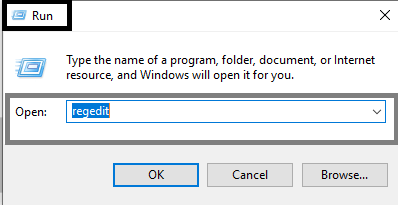
- Launch “Run” menu or “Windows + R“
- Type the command “REGEDIT” as in above Fig
- Above command will open the registry editor as
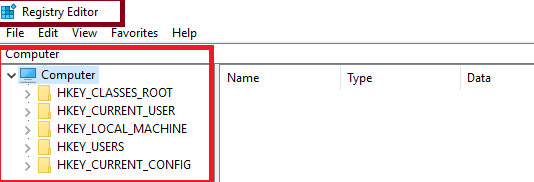
- Expand the node “Computer -> HKEY_LOCAL_MACHINE -> CurrentControlSet -> Control” as in below fig

- Locate the key “Lsa” as in below Fig

- Add new DWORD entry

- Add entry for “DisableLoopbackCheck” entry as in below fig

- Note : We need to restart the server to have this change in place
- Once server is restarted issue is resolved
We have also option to add registry entry using PowerShell. I’ll share PowerShell CMDLET in next upcoming article 🙂
Thanks for reading 🙂 If its worth at least reading once, kindly please like and share 🙂 SHARING IS CARING
Enjoy the beautiful life 🙂 Have a FUN 🙂 HAVE A SAFE LIFE 🙂 TAKE CARE 🙂


You must be logged in to post a comment.