Microsoft 365 – Power Platform – Power Apps – Empowering your Learning Journey: A Comprehensive Guide to Power Apps for Beginners – Navigating Power Platform Environments: A Beginner’s Guide – Part 7

“It’s hard to beat a person who never gives up.”
Welcome, Explorer of Digital Realms!
Embarking on the journey of Power Platform environments is like stepping into a world where your organization’s digital assets come to life—apps, data, and more. Fear not, intrepid reader, for we are here to be your guides through this organized landscape. In this beginner’s guide, we’ll unravel the basics, making your initiation into this digital universe a breeze.
Key takeaways from this article
- Learn the basics of Power Platform environments, where we organize digital tools.
- Understand different types like Default, Developer, and Trial Environments, each with specific uses.
- Get beginner tips, like giving your workspace a fun name and using the Admin Center.
- Explore a practical example, “XYZ Corp Project Management,” to see environments in action.
- Stay tuned for an easy-to-follow guide on using Power Platform in real-world scenarios.
Empower Your Learning Journey with Power Apps!
Foundations: Master Power Apps and the Power Platform dynamics. Read Part 1.
Exploration: Navigate Power Apps’ enchanting features. Explore Part 2.
No Code Magic: Unleash creativity with Canvas Apps. Discover Part 3.
Business Decisions: SPFx vs Power Apps insights. Decide with Part 4.
Hands-On Creation: Team-guided Canvas App creation. Create with Part 5.
App Mobility: Learn Power Apps basics – Moving Your Apps Around. Explore Part 6.
What is an Environment in PowerApps?

In PowerApps, we like to think of an environment as a digital workspace or container. It’s the place where we, as a team or organization, can efficiently organize and manage our apps, workflows (flows), and connections.
- Container for Our Organization
- Imagine it as a box where we collectively keep all our digital tools. Inside this box, we can have different apps and processes neatly arranged.
- Managed Space
- Similar to how our room or desk helps us keep our belongings organized, an environment assists our organization in keeping its digital tools in order.
- Connected to Our Group
- Environments are created under a larger system called Azure Active Directory, a big directory that keeps track of everyone in our organization.
- Database Management
- It’s also a way to handle data. Within each environment, we can create and manage a special type of database called Dataverse.
- Automatic Default Space
- When we start using PowerApps, it gives us a default environment to work in. This is like a default room for everyone in our organization to share.
In simple terms, an environment in PowerApps is like a digital box where we keep all our tools and apps organized, and it’s connected to our organization’s main system.
Scenario: “OS Infotech Project Management”
What’s Happening
We, at OS Infotech, are a company that manages projects, and we want to make things easier using PowerApps.
Imagine Different Rooms (PowerApps Environments)
- Default Room (Default Environment):
- What’s Happening: This is the first room everyone gets when they use PowerApps. It’s like the main place for everyone to talk and share, but not for super important projects.
- Example: It’s like the main bulletin board in the office where everyone sees important messages.
- Personal Experiment Room (Developer Environment):
- What’s Happening: Each project manager has their own special room (Developer Environment) to try out new ideas without messing up the main stuff. Only they can use it.
- Example: It’s like having your own desk where you can test new pens and sticky notes without disturbing others.
- Main Project Room (Production Environment):
- What’s Happening: The big room (Production Environment) where the important project stuff is kept. Only certain people with special keys can get in. This is for serious, important work.
- Example: It’s like the secret project room where the bosses keep the important project plans.
- Test Room (Sandbox Environment):
- What’s Happening: Before making big changes in the main room, there’s a practice room (Sandbox Environment) to see if everything works okay. It’s separate from the main room.
- Example: It’s like a practice field where we practice soccer moves before playing in a big game.
- Try-It-Out Room (Trial Environment):
- What’s Happening: A free trial room (Trial Environment) to test new tools for a short time. If we like it, we can bring it into the main project room.
- Example: It’s like borrowing a new video game to see if we like it before deciding to buy it.
Why It’s Good
- Keeps Things Organized: Imagine if everyone’s messages, experiments, and important plans were all mixed up. These rooms (Environments) keep everything neat and tidy.
- Keeps Secrets Safe: Not everyone should see everything. These rooms (Environments) make sure only the right people can access the really important stuff.
- Tries New Ideas Safely: In the personal room (Developer Environment), project managers can try out new things without worrying about breaking anything important.
- Makes Sure Changes Work: The practice room (Sandbox Environment) helps make sure that when we make big changes, everything will still work smoothly in the main project room.
- Tests New Tools Safely: The free trial room (Trial Environment) lets us play with new tools for a short time before deciding if we want to use it for real.
In simple terms, PowerApps environments are like different rooms for different jobs in PowerApps. They keep things organized, make sure important stuff stays safe, and let people try out new ideas and tools without causing trouble. Each room (Environment) has its own special purpose!
PowerApps Environment Characteristics
- Containers for Different Jobs
- Think of environments in PowerApps like separate boxes for different tasks. We might have one box for testing, another for creating the real thing, and another for making sure everything works perfectly.
- Security Bubbles
- Each box (environment) keeps its own secrets. Only people allowed into that box can see what’s inside. It’s like having a safe for our important things, and only certain people have the combination.
- Location Matters
- Each box has a fixed location. It’s like saying, “This box is in the living room, and only things in the living room can connect to it.” This helps keep everything organized and working smoothly.
- No Sneaky Connections
- Apps we build in one box can only talk to things in that box. If we made a game in one box, it can’t suddenly start grabbing things from the box where we keep our homework. This keeps everything neat and tidy.
- Create, Delete, Recover
- We can make as many boxes as we need, but there’s always one default box. We can’t throw away the default box, but we can throw away the others if we want. If we accidentally throw away a box, we can get it back within a week.
Environment Basics
- Created in a Special Place
- Each workspace is made in a special digital area called Azure Active Directory.
- Limited Access
- Only people within our organization can access what’s in this digital workspace.
- Location Matters
- This workspace is tied to a specific location, like a country. When we create something in this space, it stays in that area.
Who’s in Charge?
There are two main roles:
- Environment Admin: Handles all the big decisions, like adding or removing people and setting rules.
- Environment Maker: The creators! They build and share things like apps and workflows within the workspace.
PowerApps Environment Types

- Default Environment
- What is it? Think of it as the automatic, shared space everyone in our organization gets when they start using PowerApps.
- Who uses it? Everyone in our group talks and shares here.
- Important things: It’s not for super important projects, and we can’t turn it off or throw it away.
- Developer Environment
- What is it? This is like a personal playground for one person. It’s not for sharing.
- Who uses it? Just the person who owns it, usually for trying out ideas.
- Important things: We can take things out of this playground if needed.
- Production Environment
- What is it? This is for serious, important work in our organization. Like the main stage for our big show.
- Who uses it? Anyone with a special license can own and use it.
- Important things: We can only have two of these, and they have a good amount of storage.
- Sandbox Environment
- What is it? A safe area for testing and trying out things without messing up the important stuff.
- Who uses it? Developers and testers who want to play around without breaking anything crucial.
- Important things: It’s a bit like a practice field with some rules.
- Trial Environment
- What is it? It’s a free trial space to test PowerApps for a short time.
- Who uses it? Limited to one person, and it’s only for 30 days.
- Important things: If we like it and want to keep using it, we have to turn it into a Production Environment.
In simple terms, it’s like having different playgrounds – one for everyone, one for individuals, one for serious work, one for practice, and a trial one that we can test out for a short time. Each has its own rules and purposes.
Exploring Trial Environments:
In the Trial environment, there are two types to choose from:
Standard Trial Environment:
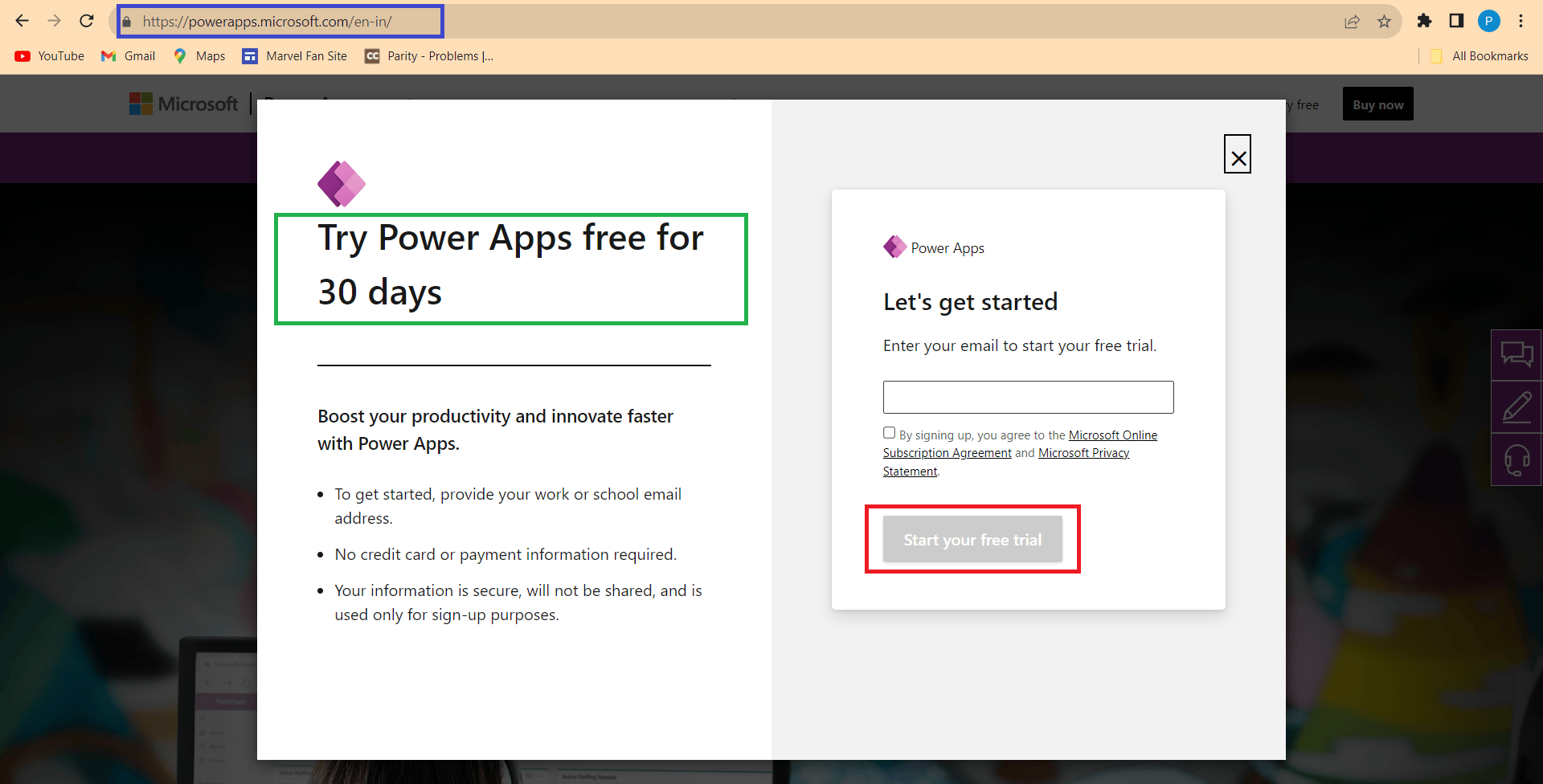
- How We Use It: This is like a test playground for our company to try out new features and quickly build applications in PowerApps.
- User Access: Anyone from our organization with the right license can create a 30-days trial environment.
- Creation Control: Admins have the power to decide who gets to create this trial environment.
Trial (Subscription-Based):
- How We Use It: Companies can utilize this type for developing larger, multi-user, and multi-department solutions in PowerApps.
- Administrator Access: Tenant admins are the ones who can add a trial (subscription-based) environment to our tenant.
- No Cost: Good news – both types of trial environments come at no cost!
In simple terms, think of the Standard Trial Environment as a safe space to play with new features, and the Trial (Subscription-Based) as a platform for building bigger, multi-user solutions. And the best part? It’s all free for us to explore and learn!
Tips for Beginners: Navigating Power Platform Environments

Renaming Our Default Workspace:
- Customization:
- When we think about renaming our default environment, it’s like giving our digital workspace a nickname. We can choose something fun or related to our team, like “Marketing Base” if we’re into marketing.
- Recognition:
- Renaming helps us find our default space easily. Instead of a boring name, we can pick something that stands out. It’s like putting a label on our digital backpack so we can spot it quickly.
Efficient Management:
- Admin Center Usage:
- Imagine the admin center as our control hub, like the settings on our favourite game. Let’s take a peek at different sections to control who’s in and what settings we want.
- Sorting and Searching:
- As we gather more digital spaces, let’s use sorting (like putting our toys in order) and searching (like finding our favourite game) to keep things tidy and find what we need.
Understanding Environment History:
- Timeline of Actions:
- The environment history is like a storybook. Each action is a page. Let’s flip through to see when things happened and who made them happen. It’s like reading about our digital adventures.
- Initiators and Outcomes:
- Let’s find out who started each action and what happened because of it. It’s like discovering who made the rules in our favorite game and what changed when they did.
Pro Tip for Beginners:
- Keep it Simple and Learn Gradually:
- In Power Platform land, let’s start small. Give our default space a cool name. Explore the admin center one step at a time, like learning new game controls. Use sorting and searching to keep things neat. Look at the environment history like reading a fun story. Soon, it will all feel easy, and we’ll be the bosses of our digital world!
Conclusion: More Digital Fun Ahead!
Guess what? This isn’t the end, not even close! Our guide to Power Platform environments might be wrapping up, but there’s a whole bunch more coming your way.
Think of the different “rooms” we talked about—the Default, Developer, Production, Sandbox, and Trial Environments—as doors to endless digital adventures. Each one has its own cool stuff waiting to be discovered.
Now, as we dive into Trial Environments, whether you’re playing around or getting serious, remember, it’s all free to try!
We’ve covered some basics, like giving your workspace a cool name, getting comfy with the Admin Center, and figuring out your digital history. And guess what? There’s more to come! We’re just getting started on this digital journey.
Stay Tuned for More!
Stay tuned for upcoming articles where we delve into Trial Environments, Admin Center tips, environment history exploration, and more! We’re here to guide you to become the bosses of your digital world.
So, buckle up because there’s more fun, more learning, and more digital excitement headed your way!
Catch you soon for the next round of digital awesomeness!
Your Partners in the Digital Fun.
Also get my article updates on my social media handles.
Twitter – https://twitter.com/PrajyotYawalkar?t=oovP0r9FnDtz5nNSJGKO0Q&s=09
LinkedIn – https://www.linkedin.com/in/prajyot-yawalkar-093716224/
Have a wonderful day.
Thanks for reading.


![PowerShell : resolving error - Method invocation failed because [System.Management.Automation.PSObject] does not contain a method named 'op_Addition'](https://i0.wp.com/knowledge-junction.in/wp-content/uploads/2024/06/fig1.png?fit=944%2C103&ssl=1&resize=40%2C40)
1 Response
[…] Navigating Environments: A Beginner’s Guide. Dive into Part 7. […]